AVAYA DOCUMENTATION CENTER
Find answers to your technical questions and learn how to use our products
Implementing and Administering Avaya Aura® Media Server
Managing the High Availability state
About this task
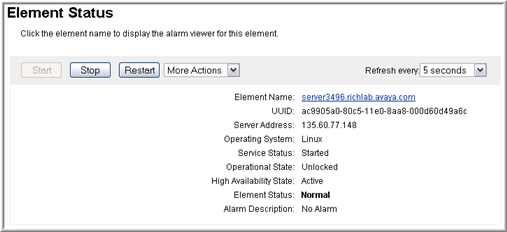
If you configured Avaya Aura® MS for High Availability, the system displays the High Availability state of the server on the page. The More Actions drop-down menu contains state transition options, which are available only when High Availability is enabled. The High Availability state can be one of the following values:
Action |
Description |
|---|---|
Active |
The server has a configured Service IP address and is providing service. |
Standby |
The server is inactive but remains synchronized with the active server. |
Failed |
The server has failed. The server will soon restart and transition to a Searching state. |
Locked Active |
The active High Availability server is Locked Active when you select Local High Availability State Lock on and the server is not shutdown. |
Locked Standby |
The standby High Availability server is Locked Standby when you select Local High Availability State Lock on and the server is not shutdown. |
Shutdown |
The server is in a management shutdown state and is not providing service. |
Searching |
The server tries to determine the state of the other server in the High Availability pair. The server remains in the Searching state for less than a second before transiting to the Active or the Standby state. |
Procedure
- On one of the paired High Availability servers, navigate to .
Servers in the High Availability mode display an additional field, High Availability State, on the Element Status page, as shown below: