

AVAYA DOCUMENTATION CENTER
Find answers to your technical questions and learn how to use our products
Using Avaya Workspaces for Avaya Experience Platform™ (On-Prem + Connect)
Headset call control issues
Condition |
Resolution |
|---|---|
When you connect the Plantronics headset to your computer, the Device Settings page in Avaya Workspaces displays the following error: Could not connect to Plantronics Hub. Advanced features not available. |
|
When you connect the Jabra headset to your computer, the Device Settings page in Avaya Workspaces displays the following error: The Jabra Chromehost is not installed. Advanced features not available. |
Download the Device Connector for Windows and install Jabra Chrome Host. |
When you connect your Jabra headset to your computer, the Device Settings page in Avaya Workspaces displays the following error: The Jabra Chrome Extension is not installed. Advanced features not available. |
Ensure that you add the Jabra Device Connector (Browser Extension) to your Google Chrome browser. |
When you connect your Jabra headset to your computer, the Device Settings page in Avaya Workspaces displays the following error: Could not connect to Jabra device. Advanced features not available. |
|
Turn on or turn off the ringer in the headset base.
Note:
This feature is available only in headsets that include a headset base, such as the Plantronics Savi 82xx series. |
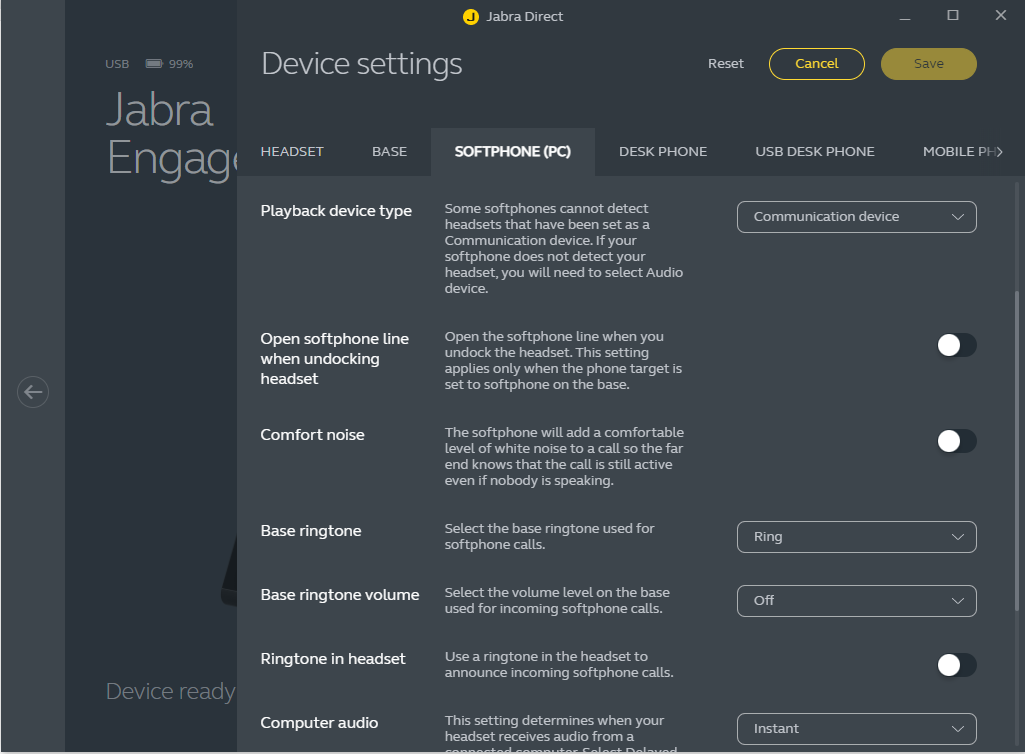
In Plantronics Savi 82xx series headsets, you can use the ringer button on the headset base to turn on or turn off the ringer. For Jabra headsets, download and install Jabra Direct for Windows. You can use the Base ringtone and Base ringtone volume options in Jabra Direct to control the ringer of the headset base. |