

AVAYA DOCUMENTATION CENTER
Find answers to your technical questions and learn how to use our products
Using IP Office System Status
Call Details
You can access the Call Details screen using the following method:
Select a current call in the Active Calls screen.
Click Extensions and then click the relevant extension.
Click System and then Control Unit and double-click a line.
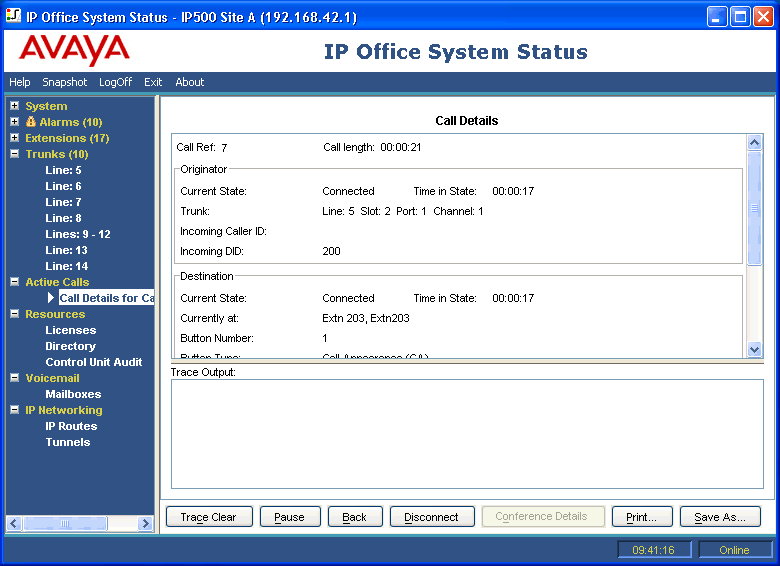
Information Displayed
Information |
Description |
|---|---|
Call Ref |
Call reference assigned by the system and associated with the line in use. |
Call Length |
Total length of the call. For further details, see the following sections: |
Trace Output |
The bottom section of the screen contains trace information and a scroll bar, enabling you to view the trace. Tracing enables you to view details of specific calls and is useful for problem solving. For more information, see Trace. |
Notes
The names shown for voicemail destinations are those supplied by the system to voicemail during connection. The information does not update for any subsequent changes, for example logging in to another mailbox.
A call that is both alerting/queuing and listening to an announcement will indicate information about both.
Buttons
The following buttons can appear on this screen:
Button |
Description |
|---|---|
Trace Clear |
Clears the trace and continues tracing. |
Pause |
Stops the screen from updating. The button label and function changes to Resume when the screen is paused. |
Resume |
Resumes updating screen in real time. When pressed, the button label and function changes to Pause. |
Back |
Returns to the previous screen. |
Disconnect |
Clears the current call. The button cannot stop alerting calls on Loop Start, T1 Loop Start and T1 Ground Start lines. |
Conference Details |
Available for calls in a conference. Displays the conference details |
Print... |
Prints all information available in the current screen (including any information currently scrolled off). |
Save As... |
Saves the information shown on the screen to a text file (TXT or CSV). You can only save trace screens as CSV text files. |