

AVAYA DOCUMENTATION CENTER
Find answers to your technical questions and learn how to use our products
Using IP Office System Status
Status (H.323 Trunk)
Path:
Access this menu by clicking Trunks on the navigation panel. Alternatively, click System and then Control Unit and double-click the line.
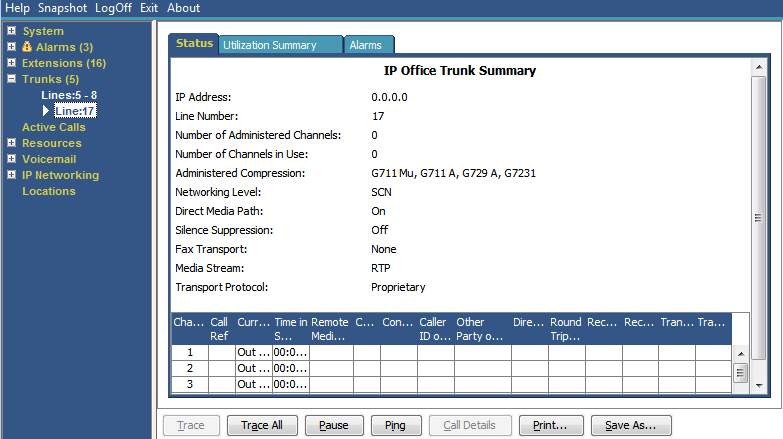
Information Displayed
Name |
Description |
|---|---|
IP Address |
The gateway IP address from the VoIP form. |
Line Number |
Defined in the system configuration. |
Number of Administered Channels |
Number of channels from the VoIP line tab. |
Total Channels in Use |
Total of all the channels that have associated call references. |
Administered Compression |
The compression mode from the VoIP form. |
Small Community Networking |
The menu displays one of the following:
|
Direct Media Path |
Either On or Off. |
Enable Faststart |
Either On or Off. |
Silence Suppression |
Either On or Off. |
Channels Table |
See the Channels Table table. |
Channels Table
This table displays the following details:
Element |
Description |
|---|---|
Channel Number |
Click on the row to view details of the call. |
Call Ref |
Call reference, assigned by the system and associated with the line in use. When a trace is in progress, any calls on the trunk will show (i) next to the Call Ref. If you select Call Details while a trace is in progress, the screen remains unchanged and a pop-up window appears which contains details about the selected call. The pop-up shows the state of the call at the time of selection and does not update. See Trace. |
Current State |
The current state of the call associated with the button. See Call States (Trunk). |
Time in State |
Reset to zero each time there is a state change. |
RTP IP Address from Connection |
IP address of the remote end of the RTP Media Stream. |
CODEC |
Available via H.323 message and may change throughout the call. |
Connection Type |
Either DirectMedia, RTP Relay or VCMs. |
Caller ID or Dialed Digits |
The information displayed depends on the call direction.
|
Other Party on Call |
See the Other Party on Call table. |
Direction of Call |
Displays the call as either Incoming or Outgoing. |
Quality of Service (QoS) |
Normal data packets can prevent or delay voice data from getting across the link, causing unacceptable speech quality. System Status provides the following information. The system calculates the statistics as defined in RFC 1889.
|
Other Party on Call
Contains one of the following:
Where Call was Originated/Answered |
Displayed Value |
|---|---|
User |
User name and number |
VoiceMail Call flow |
Start Point name |
VoiceMail Box |
Voicemail - user name or hunt group name of the mailbox |
Data Service |
RAS - service name |
Conference |
Conference name |
Trunk |
Line ID/URI Group/Channel number |
Park Slot |
Park Slot - when the other end has parked the call |
Announcement |
Announcement - the hunt group associated with the announcement number |
Hunt Group |
Hunt Group - name and number when a call is in a hunt group queue (not alerting) |
Buttons
The following buttons can appear on this screen:
Button |
Description |
|---|---|
Call Details |
Displays call details for the selected call, trunk or trunk channel. |
Resume |
Resumes updating screen in real time. When pressed, the button label and function changes to Pause. |
Pause |
Stops the screen from updating. The button label and function changes to Resume when the screen is paused. |
Print... |
Prints all information available in the current screen (including any information currently scrolled off). |
Trace |
Starts a trace of the rows selected. System Status displays a trace for each call associated with the selected trunk or extension. See Trace. |
Trace All |
Starts a trace for the whole trunk group or extension. System Status displays a trace for all calls associated with the trunk or extension. See Trace. |
Save As... |
Saves the information shown on the screen to a text file (TXT or CSV). You can only save trace screens as CSV text files. |