

AVAYA DOCUMENTATION CENTER
Find answers to your technical questions and learn how to use our products
Using IP Office System Status
Service Alarms
The Service Alarm screen shows service error. System Status displays current alarms in red and updates the alarms in real time.
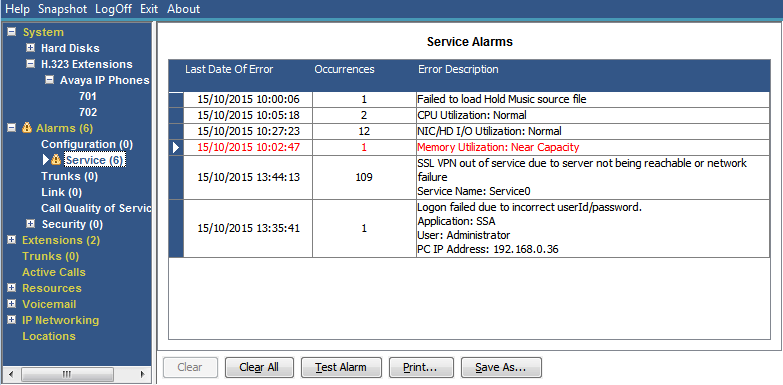
Information Displayed
Information |
Description |
|---|---|
Last Date of Error |
The last time the particular error occurred. |
Occurences |
How many times the alarm has occurred since the system last restarted or System Status last cleared the alarms. |
Error Description |
A description of the error that caused the alarm. |
Buttons
The following buttons can appear on this screen:
Button |
Description |
|---|---|
Clear |
Clears the selected alarms. If the alarm is still active (red) it remains but with the occurrences count reset to 1. |
Clear All |
Clears all listed historical alarms that are no longer active. Note that any alarms still active (red) remain but with the occurrences count reset to 1. |
Print... |
Prints all information available in the current screen (including any information currently scrolled off). |
Save As... |
Saves the information shown on the screen to a text file (TXT or CSV). You can only save trace screens as CSV text files. |
Test Alarm |
Request the IP Office system to send a test alarm. |