

AVAYA DOCUMENTATION CENTER
Find answers to your technical questions and learn how to use our products
Using IP Office System Status
24-Hour Performance History
Path:
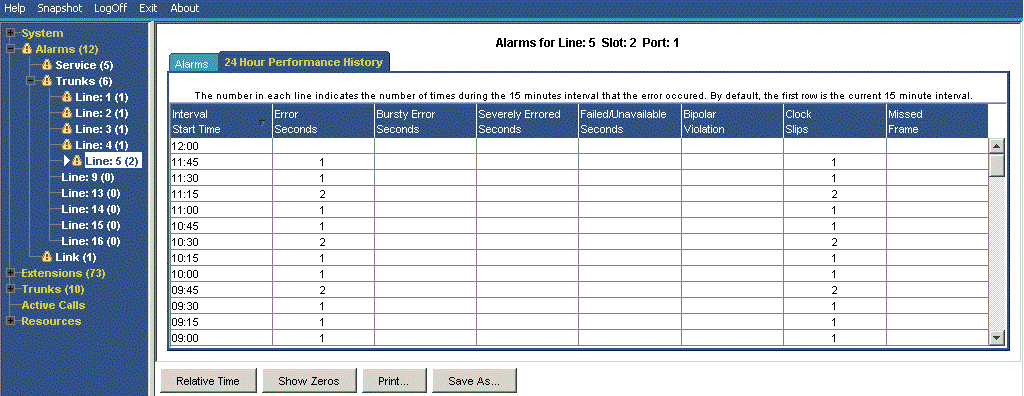
The first line in the table displays the current 15-minute interval. Subsequent lines display the last 24-hours divided into 15-minute intervals. Fewer lines appear if the system has been running for less than 24-hours.
Buttons
The following buttons can appear on this screen:
Button |
Description |
|---|---|
Absolute Time |
Applies to the 24-Hour Performance History. Each line shows the actual time in 24-hour clock format at which the reported 15-minute period started. |
Relative Time |
Applies to the 24-Hour Performance History. When selected, for each line, the time value indicates how far into the 15-minute interval the line occurs. For example, 3 minutes appears as 00:03. |
Show Blanks |
Applies to 24-Hour Performance History. Show any 0 error values as blanks. |
Show Zeros |
Applies to 24-Hour Performance History. Show any 0 error values as zeros. |
Print... |
Prints all information available in the current screen (including any information currently scrolled off). |
Save As... |
Saves the information shown on the screen to a text file (TXT or CSV). You can only save trace screens as CSV text files. |