

AVAYA DOCUMENTATION CENTER
Find answers to your technical questions and learn how to use our products
DITA and Tridion Docs Work Instructions and Guidelines
Capturing the file count in a publication
You can use the Tridion Docs workflow report to find the number of topics, maps, and images in a publication. You might need this information to plan for activities, such as review and conversion.
Note:
The file count from the workflow report is based on the publication baseline. The baseline includes all objects referenced in the publication, such as topics that you reuse from and content that might be excluded from the output using conditions. So the files in the baseline can include more objects than that available in the output.
- Log in to the Tridion Docs web interface.
- Click the Repository tab.
- Navigate to the folder that contains the publication for which you want to generate a workflow report.
STEP RESULT:The page displays the contents of the folder in the right pane.
- Click the title of the publication for which you want to generate the report.
ADDITIONAL INFORMATION:When you only select the box next to the title, the page does not display the details of the publication.STEP RESULT:The page displays versions in the lower right pane.
- Select the check box next to the publication version for which you want to generate the report, and then click Workflow in the toolbar of the lower right pane.
STEP RESULT:The page displays a Workflow management window.
- In the Workflow management window, click use baseline information only, and click OK.
STEP RESULT:A new window opens and the reports begins to display. A message displays to confirm if you want to load the details section of the report, as it can take several minutes to display depending on the number of objects in the publication.
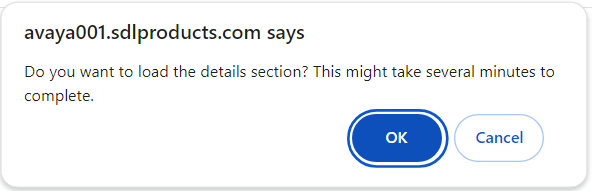
- Click Cancel.
- To export the Details section of the workflow report:
- Click Download Statistics Report in the toolbar.
- Click Save in the File Download dialog box.
- Browse to and select a location to save the report, and then click Save.
ADDITIONAL INFORMATION:Note:Do not click Send and Export or Export in the toolbar. These buttons export the publication, and not the report.STEP RESULT:The report is exported as a .csv file. This file does not include the Statistics section of the report. - Open the statistics report you downloaded.
STEP RESULT:The row count gives the number of objects in the publication. The objects include the topics, maps, and images.
- To find the topic count in the publication, do the following:
- Open the .csv file in Microsoft Excel.
- To sort by topics, click , and in the Type column, select ISHModule.
- Take the count of the topics in the Title column.
ADDITIONAL INFORMATION:Note:Ensure that you account the following topics only once:
-
Topics common to all programs: For example, Product names, Application names, Snap-in names, Variables, Languages
-
Topics common to specific project: For example, common steps, common terms, common uicontrol elements, common wintitle elements, documentation titles, legal page.
-
Topics reused from other projects: For example, common steps, common terms, common uicontrol elements, common wintitle elements.
-
- To find the topic count in all documents of a product, do the following:
ADDITIONAL INFORMATION:
-
Open the .csv file of the first document in Microsoft Excel, example, POS.
-
Open the .csv file of the second document, copy all rows except the header row, and paste the rows in the first Excel sheet below the existing data. Similarly, copy the rows from remaining csv files of documents for the product into the first Excel file.You now have all the data from all documents in the product.
-
Press Ctrl+A to select all the data and click Data, in the Data Tools group, click Remove Duplicates icon (
 .
.
-
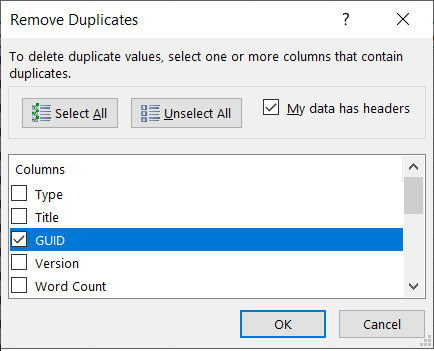
In the Remove Duplicates dialog box, click Unselect All, and select the GUID check box, and click OK.
-
To sort the data by topics, click , and in the Type column, select ISHModule.The message in the footer displays <num1> of <num2> records found. Where, num1 is the topic count in all publications of the product. For example, in 340 of 420 records found, 340 is the total topic count.
-