

AVAYA DOCUMENTATION CENTER
Find answers to your technical questions and learn how to use our products
DITA and Tridion Docs Work Instructions and Guidelines
The Inkscape interface
The Inkscape interface provides a drawing area and a collection of toolbars, palettes, and guides to help you create illustrations.
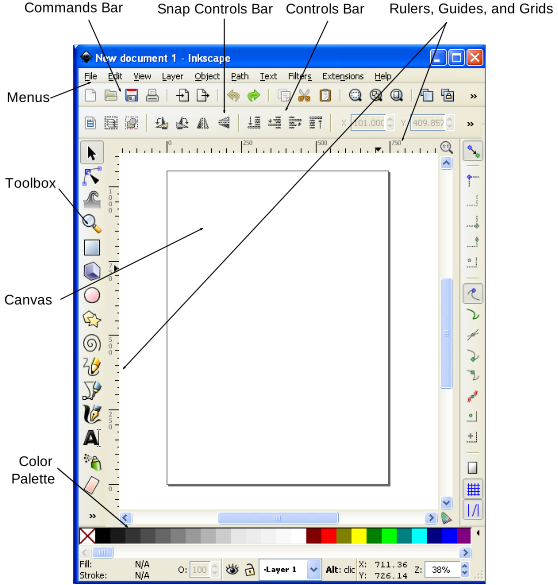
The following section list the functions of the main tools in Inkscape.
|
Name
|
Description
|
|---|---|
|
Menus
|
Provides access to all of the functionality available in the tool. The options available from the toolbars and toolboxes is also available from the main menus.
|
|
Commands Bar
|
Contains shortcuts to commands otherwise accessible from the menus or shortcut keys. It also provides other controls for manipulating the document and drawing objects.
|
|
Snap Controls Bar
|
Lets you easily align items (snap to guides), force objects to align to paths (snap to paths), or snap to bounding boxes and edges.
|
|
Rulers, Guides, and Grids
|
Guides along the topic and left side of the interface to help you size illustrations.
|
|
Tool Controls Bar
|
Selecting a tool in the Toolbox changes the Tool Controls Bar to show the options associated with that tool. Depending on context, some of these options affect a selected object while some take effect only when drawing a new object; others can affect either existing or new objects.
|
|
Canvas
|
The drawing area. It can be extended outside the viewable area and can be panned (scrolled left/right and up/down) and zoomed.
|
|
Toolbox
|
Main editing controls that contains the basic set of drawing utilities, including those for creating and editing shapes.
|
|
Color Palette
|
Controls fill and stroke color options . Colors can be dragged from the palette onto objects to change their Fill. Using the Shift key while dragging will change the Stroke color instead. The color used by some tools can be set by clicking on a color swatch.
|