

AVAYA DOCUMENTATION CENTER
Find answers to your technical questions and learn how to use our products
DITA and Tridion Docs Work Instructions and Guidelines
Creating a video publication
Create a separate publication where you can add all video topics.
- Create a new publication using the new Video Publication template.
ADDITIONAL INFORMATION:Ensure that the Publication type is set to Videos.
- Create a new bookmap using the new Videos map template.
ADDITIONAL INFORMATION:Note:Do not add the legal topic or any normal topic such as, concept, task, and reference in the Videos bookmap.
- Create chapter maps to organize your video topics.
- Create a reference type topic and check out the topic.
- Press Enter, select the object element, and add the following attributes from the Attributes window:
ADDITIONAL INFORMATION:
-
data: <url of the video>To reference videos from YouTube, for example, the caUGylLdw08 video, enter https://www.youtube.com/embed/caUGylLdw08. Note that the path must contain /embed/.
-
outputclass: iframe
-
- In Oxygen XML Author, go to the Text view at the lower-left corner, and add the full view parameter
<param name="allowfullscreen" value="true" />inside the object element.ADDITIONAL INFORMATION: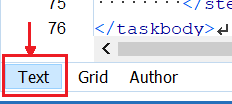 For example:
<object data="https://cdn.avaya-learning.com/CDN_EU/xxxxxx" outputclass="iframe">
<param name="allowfullscreen" value="true" />
</object> - Repeat Steps 4 through 6 for each video.
ADDITIONAL INFORMATION:Note:Add one video in a topic.
- Add maps into the video publication and add the video topics into appropriate maps logically organizing the topics.
- Publish the AvayaDocPortal output to upload the videos publication on Avaya Documentation Center.