

AVAYA DOCUMENTATION CENTER
Find answers to your technical questions and learn how to use our products
DITA and Tridion Docs Work Instructions and Guidelines
Checking accessibility and generating a report
To comply with Section 508, check if images and objects in a document are accessible and usable by screen readers. Generate a report if required.
Before you begin
-
Provide a meaningful and short text in the alt tag for each image used in the topic.
-
Publish the Avaya PDF output in Tridion Docs.
- Download and open the PDF in the Acrobat application.
- From the menu or the toolbar, click .
ADDITIONAL INFORMATION:
- From the menu, select Accessibility Check.
STEP RESULT:Acrobat displays the Accessibility Checker Options dialog box.
- In Report Options section, click Create accessibility report check box, and click Choose, browse to a location where you want to save the report.
ADDITIONAL INFORMATION:
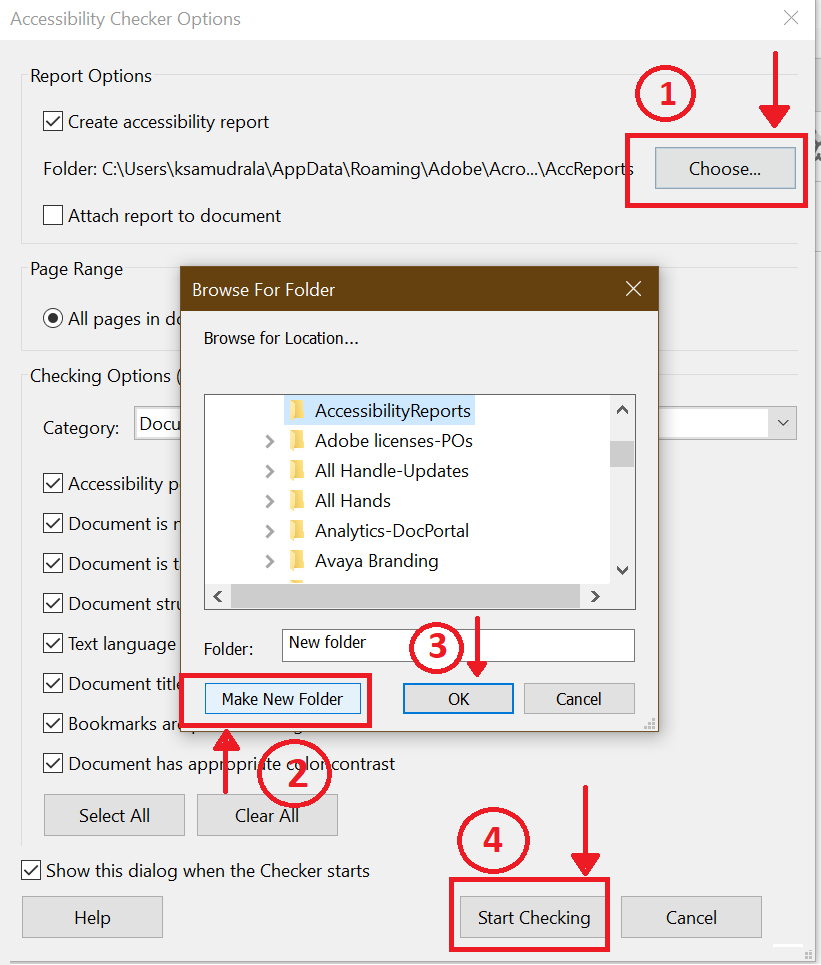
- To create a new folder to save the report, click Make New Folder, else, click OK.
- Click Start Checking.
STEP RESULT:The checker tool lists the sections and pass/fail status and the rule description.
- Fix any issues in the report, such as adding alt text in images and regenerate the report if required.
- Share the accessibility report as required.