

AVAYA DOCUMENTATION CENTER
Find answers to your technical questions and learn how to use our products
DITA and Tridion Docs Work Instructions and Guidelines
Changing the workflow status of objects from the web interface
All topics, maps, and images must have a status of Pre-release Validation before they can be released. Other states, including Technical Review or Editorial review, are recommended when they are applicable but can be skipped.
You can use this procedure to move the objects from draft to Pre-release Validation and Pre-release Validation to Release states.
- Log in to the Tridion Docs web interface.
- When the system prompts to load the details, click Cancel.
ADDITIONAL INFORMATION:If you choose to load the details, it might take several minutes to complete.
- Generate a workflow report for the publication that contains the objects.
ADDITIONAL INFORMATION:Wait for the details section of the workflow report to fully load before making changes. You can use the scroll bars to view the Details section. If the Details are not displayed as expected, refresh the browser window.
- To change the status of specific objects:
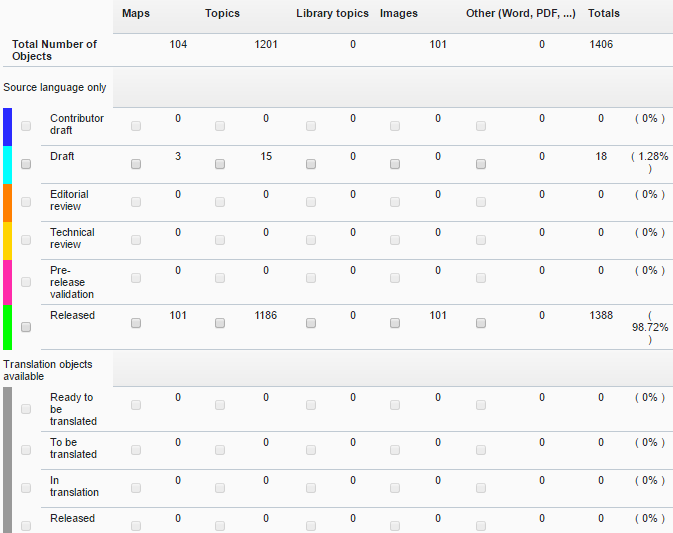
- In the report, scroll to the second section that shows all objects in the publication.
- Select the check box of the object for which you want to change the workflow status.
ADDITIONAL INFORMATION:You can select multiple objects that you will change to the same workflow status.
- To change all topics, maps, images, or all objects to the same workflow status, select the check box to the left of the type of object that you want to change the workflow status, for example, Draft Pre-release Validation.
ADDITIONAL INFORMATION:You can select more than one type, such as all Topics in Draft status and Editorial review status. Or you can select all Draft Topics and Maps. You can also choose to move objects in all types from one status to another by selecting the check box to the left of the status.
- Scroll to the toolbar at the top of the report.
- In the Select workflow action field, select the action that you want to do, and then click Send.
ADDITIONAL INFORMATION:You cannot move to the Released state from any state other than Pre-Release Validation. If objects are in another state and you want to release them, you must first move them to Pre-Release Validation, then generate the workflow report again, and move the objects from Pre-Release Validation to Released.STEP RESULT:If status change requests are invalid, the system indicates that it could not transition all of the request objects. For example, if you try to move directly from Draft to Released, the request is not processed because you cannot move from Draft straight to Released.The updated report does not automatically update to reflect the new workflow status. To confirm the changes, regenerate the report.
- Repeat the process to move the objects from Pre-release validation to Release.