

AVAYA DOCUMENTATION CENTER
Find answers to your technical questions and learn how to use our products
DITA and Tridion Docs Work Instructions and Guidelines
Forcing a large image to the next page in a 3-column quick reference guide
Some projects might need to include large images, such as a navigation map of keypresses or options, in a Quick Reference output. These images are unreadable if constrained to a column. We cannot span the columns due to limitations in processing, but we can make the large images appear to take up a whole page. To try this functionality and you have any questions, contact Information Architect.
Before you begin
-
The topic must contain only the large image besides the topic title.
-
You must already have an image that is approximately the right size for the landscape page in the 3–column quick reference output.
- In the publication, check out the topic with the large image in Oxygen XML Author.
- Double click or select the topic's root element.
For example, task element in a task template.
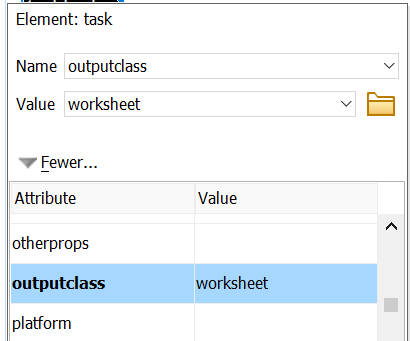
- In the Attributes window, in outputclass, type worksheet.
ADDITIONAL INFORMATION:
- Click OK.
- Check in the topic and produce the output to validate that the topic starts on a new page.