

AVAYA DOCUMENTATION CENTER
Find answers to your technical questions and learn how to use our products
DITA and Tridion Docs Work Instructions and Guidelines
Viewing publishing logs on the Tridion Docs web interface
If a publication fails to publish, view the publishing logs in the Web interface to look for the errors that caused the failure.
- Log in to the Tridion Docs web interface.
- Click the Publishing tab.
- In the left pane, click Current User to view only the publishing jobs that you submitted, or click All Users to view publishing jobs that other users submitted.
ADDITIONAL INFORMATION:The refresh might take a couple of minutes.STEP RESULT:Publishing jobs are listed by category:
-
Publishing (currently in progress)
-
Pending (in queue)
-
Release Candidate (successfully published)
-
Draft (successfully published)
-
Cancelled
-
Failed
-
- If the output been published more than two days ago, click Last 4 days or Last 10 days from Select time period.
- Scroll to the job for which you want to view publishing logs, and then click the title of the publication.
STEP RESULT:A log for the publishing job is displayed in a new window.
- Look through the events for the first one that shows the status as Failed and then double-click the event to view the details.
ADDITIONAL INFORMATION:Tip:DITA-OT logging contains helpful information.
- In the Event Details dialog box:
- Search for the term,
error
. - Read through the details to identify the cause of the output failure.
- Search for the term,
- If you do not receive the notification on the publishing status, view the logs from web interface:
- On the Tridion Docs web interface, navigate to the publication for which the publishing failed, and select the select it.
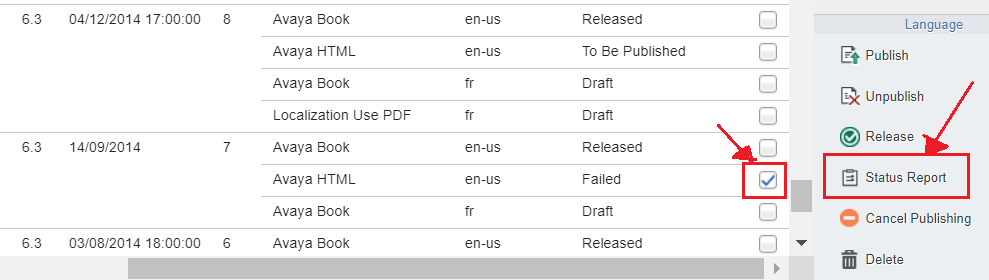
- In the right-bottom pane, select the version, output format, and language by two check boxes.
- On the extreme bottom-right pane, click Status Report.
ADDITIONAL INFORMATION:
- In the Event Details dialog, search for the term,
error
. - Read through the details to identify the cause of the output failure.