

AVAYA DOCUMENTATION CENTER
Find answers to your technical questions and learn how to use our products
DITA and Tridion Docs Work Instructions and Guidelines
Viewing publishing logs from Publication Manager
If a publication fails to publish, view the publishing logs to look for the errors that caused the failure.
You can view the logs from Publication Manager and web interface.
- Open the Publication Manager and click the Output tab.
- Select the output for which you want to check the publishing error log, right-click and click Save DITA Open Toolkit log as.
- Save the log to your computer, and do the following:
- Search for the term,
error
. - Read through the details to identify the cause of the output failure.
- Search for the term,
- If you do not receive the notification on the publishing status, view the logs from web interface:
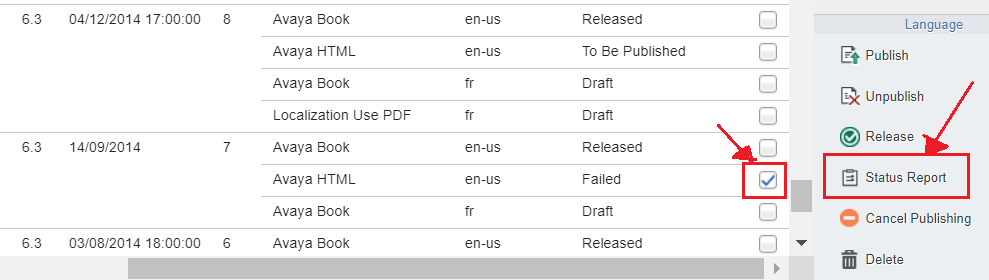
- On the Tridion Docs web interface, navigate to the publication for which the publishing failed, and select the select it.
- In the right-bottom pane, select the version, output format, and language by two check boxes.
- On the extreme bottom-right pane, click Status Report.
ADDITIONAL INFORMATION:
- In the Event Details dialog, search for the term,
error
. - Read through the details to identify the cause of the output failure.