

AVAYA DOCUMENTATION CENTER
Find answers to your technical questions and learn how to use our products
DITA and Tridion Docs Work Instructions and Guidelines
Inserting a link to a web site
- Check out the topic in which you want to insert the cross reference.
- Place your cursor in the location where you want to add the link and press Enter and insert the xref (web link) element.
ADDITIONAL INFORMATION:Alternatively, from the toolbar, click the link icon (
 ) and select Web Link.
STEP RESULT:The Web Link dialog box is displayed.
) and select Web Link.
STEP RESULT:The Web Link dialog box is displayed. - In the Web Link dialog box, type the full URL address in the URL field, for example, https://documentation.avaya.com.
ADDITIONAL INFORMATION:Important:Avoid any empty spaces in the address to keep the address valid. Ensure you include %20 for any spaces in the address.
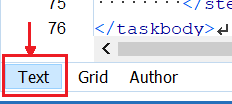
- To add the link text, at the bottom of the editor, click the Text tab:
ADDITIONAL INFORMATION:
 Change:
<xref href="https://documentation.avaya.com" format="html" scope="external"/>To:<xref href="https://documentation.avaya.com" format="html" scope="external">Avaya Documentation Center</xref>By default, the link text is the URL that you type in the URL field. - Click OK.
ADDITIONAL INFORMATION:The scope attribute is automatically set to external when you use the xref (web link) element.Important:If the scope is not set to external, Tridion Docs processes the link as internal, and converts the address to all caps.