

AVAYA DOCUMENTATION CENTER
Find answers to your technical questions and learn how to use our products
DITA and Tridion Docs Work Instructions and Guidelines
Information provided in a publication baseline
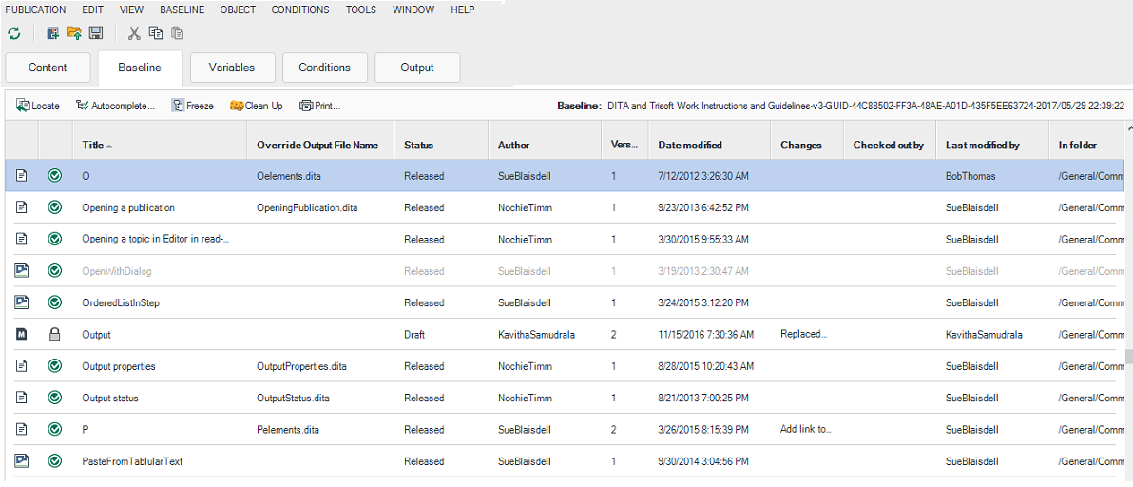
The baseline provides important information about the content in your publication. The following screen capture shows the first few columns of a sample baseline. Solid rows indicate that the object is currently being used in the publication. Greyed out objects are currently not being used in the publication, but were used at some point in the past.
Icons in the baseline
The icons displayed in the first two columns in the baseline indicates the object type and status.
|
Icon
|
Description
|
|---|---|
|
Object type
|
The type of object. The options are:
|
|
Status
|
|


Columns in the baseline
The baseline includes the following columns. You can sort the columns by clicking the column title.
|
Column
|
Description
|
|---|---|
|
Title
|
The Tridion Docs title of the object.
|
|
Override Output File Name
|
The base attribute of the topic.
To modify the Override Output File Name, you must check out the topic and modify the base attribute.
|
|
Status
|
The workflow status of the object. The values are:
|
|
Author
|
The writer specified in the Author field on the Workflow tab in the object properties.
|
|
Version
|
The version of the object used in the publication.
|
|
Date modified
|
The last date this object was updated.
|
|
Checked out by
|
The user who checked out the topic.
If the object is checked in, the column is blank.
|
|
Last modified by
|
The user who last updated the object.
|
|
In Folder
|
The full path to where this object is stored in the repository.
|
|
Product
|
The product name assigned on the Avaya-specific fields tab in the object properties.
|
|
Doc lead
|
The user assigned as the Doc Lead on the Avaya-specific fields tab in the object properties.
|
|
Type
|
Indicates if the object is a topic, map, or an image.
|
|
Newer Version
|
Indicates if there’s a newer version of the object in the repository. If there is a newer version, you can go to the Contents tab and choose the newer version if you want to use it in the publication.
|
|
Used
|
Indicates if the object is currently used in the baseline. Content that appears with a blue background is currently being used in the publication. Objects that appear with a white background are not currently used in the baseline but were at some point in the past.
|
|
Added by
|
The user who added the object to the system.
|
|
Added on
|
The date when the object was added to system.
|