

Generating a workflow report

Last Updated : Apr 25, 2024 |

About this task

A workflow report has two sections. The first section contains statistical information, including the number of each type of object and the percentage of objects in each workflow state. The second section displays the details of all of the objects in the publication.

  • Statistics: Provides contains statistical information that includes:

    • The number of objects of each type.

    • The percentage of objects in each workflow state.

  • Details: Displays the details of all objects in the publication.

Procedure

  1. Log in to the Tridion Docs web interface.
  2. Click the Repository tab.
  3. Navigate to the folder that contains the publication for which you want to generate a workflow report.

    The page displays the contents of the folder in the right pane.

  4. Click the title of the publication for which you want to generate the report.

    When you only select the box next to the title, the page does not display the details of the publication.

    The page displays versions in the lower right pane.

  5. Select the check box next to the publication version for which you want to generate the report, and then click Workflow in the toolbar of the lower right pane.

    The page displays a Workflow management window.

  6. In the Workflow management window, click use baseline information only, and click OK.

    A new window opens and the reports begins to display. A message displays to confirm if you want to load the details section of the report, as it can take several minutes to display depending on the number of objects in the publication.
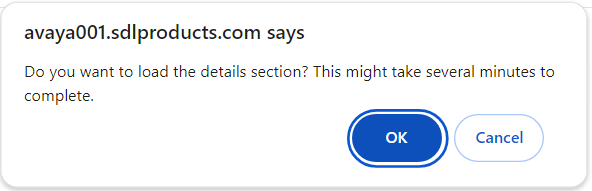
  7. Select one of the following:
    • To change the status of a category of objects using the top part of the report, click Cancel to only display the statistics.

    • To select individual objects to change the status, click OK to display the details section.

    If you select OK to display the details section, it takes a few minutes to display the details. Do not make any changes to the top part of the report until the details finish displaying. If you do, it might cause delay or displays an error.

  8. Optional If you choose only to display the statistics section of the report and then decide to see the details, scroll down and click the line Click here to start loading details section.



  9. To capture the statistical information at the top of the report, take a screen capture.
  10. To export the Details section of the report:
    1. Click Download Statistics Report in the toolbar.
    2. Click Save in the File Download dialog box.
    3. Browse to and select a location to save the report, and then click Save.
    Note:

    Send and Export or Export options buttons on the toolbar export only the publication and not the report.

    The report is exported as a .csv file. This file does not include the Statistics section of the report.