

AVAYA DOCUMENTATION CENTER
Find answers to your technical questions and learn how to use our products
DITA and Tridion Docs Work Instructions and Guidelines
Inserting a link to a web site
Procedure
- Place your cursor in the location where you want to add the link and press Enter and insert the xref (web link) element.
Alternatively, from the toolbar, click the link icon (
 ) and select Web Link.
The Web Link dialog box is displayed.
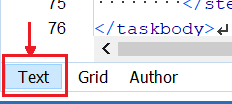
- Optional To add the link text, at the bottom of the editor, click the Text tab:
Change:
<xref href="https://documentation.avaya.com" format="html" scope="external"/>To:
<xref href="https://documentation.avaya.com" format="html" scope="external">Avaya Documentation Center</xref>By default, the link text is the URL that you type in the URL field.