AVAYA DOCUMENTATION CENTER
Find answers to your technical questions and learn how to use our products
DITA and Tridion Docs Work Instructions and Guidelines
Updating an image by uploading a new version in the web interface
Before you begin
If the status of an image that you want to modify is released, create a new version of the image in the desktop repository. This is especially important if you are working on multiple releases simultaneously and have multiple active versions of publications.
Procedure
- Select the appropriate version and language check boxes.
The version check box is the check box shown below to the far left that appears under the Filter button. The language check box is the check box shown to the far right below. If the image is not translated, only one language for English is displayed.

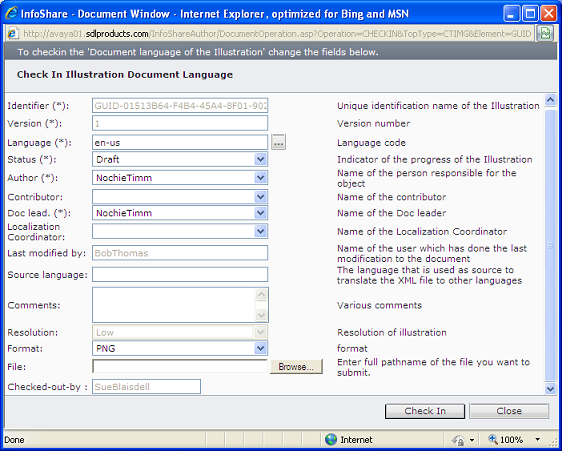
- When the InfoShare — Document Window displays, click Browse next to the File field, then navigate to the updated version of the image that you want to upload and click Open.