AVAYA DOCUMENTATION CENTER
Find answers to your technical questions and learn how to use our products
DITA and Tridion Docs Work Instructions and Guidelines
Linking video topics in documents
About this task
You can reference the video topics in documents, such as Using, Overview and Specification, Deploying, and Administering.
Procedure
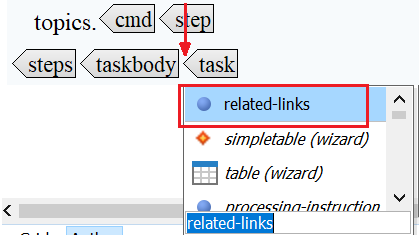
- At the end of the topic, place the cursor between body and root elements, press Enter and add the related-links element.
For example, between the end of taskbody and task elements.
- To change the link text, place your cursor in the link element, press Enter and click linktext, and enter the video title.

- In the Attribute window of the link element, set the following attributes:
href: <link to the video topic on doc center>, if not already provided in the Web Link dialog box.
scope: external
type: video
Type video if you do not see the option in the type field.
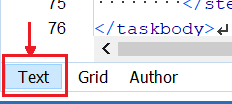
In the Text view of the editor, you will see <link href="https://documentation.avaya.com/bundle/page/<video topic.html>" format="html" scope="external" type="video">Video title</>