AVAYA DOCUMENTATION CENTER
Find answers to your technical questions and learn how to use our products
DITA and Tridion Docs Work Instructions and Guidelines
Scaling images in topics
About this task
You can apply attributes to an image element to scale the size of an image up or down in your output. The attributes do not impact the image itself; but the size displayed in the output. This means that if you use a image in more than one topic, you can control the size in each topic in which the image is used.
Procedure
- Check out the topic in Oxygen XML Author.
- Double-click or select the image element.
- In the Attributes dialog box, set one of the following attributes to control the size of the image in the output:
width: If the image is too wide, set the width in inches. Enter the number followed by
in
to indicate inches.When you set the width, the height is proportionally scaled.
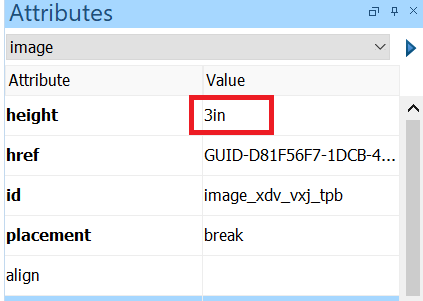
height: If the image is too long, set the height in inches. Enter the number followed by
in
to indicate inches.When you set the height, the width is proportionally scaled. The maximum height you can use is 8.75in. If you are using an image and not the fig element, or you are using fig but not including a title, you can set slightly higher than 8.75in.
scale: To scale the image to a specific percentage. Do not enter the percentage character; it is assumed.
Example
In the following example of an image, the height is limited to 3 inches.