

AVAYA DOCUMENTATION CENTER
Find answers to your technical questions and learn how to use our products
DITA and Tridion Docs Work Instructions and Guidelines
Importing images
About this task
Image files must be in the svg, gif, or png format. Use the jpg format only if you are unable to get the file in svg, gif, or png format.
Save the images in a folder with content type set to Image. Usually, this folder is named images for consistency. However, you can give a different name based on your project. You can import multiple images at a time from the same source folder.
See the Importing and adding an image to a topic video for steps to add images to a topic.
Before you begin
Create the images folder within your content folder, if it does not already exist.
Procedure
- On the right pane, click the import (
 ) icon.
 - Required For SVG images, on the Add Object dialog box, click Enable translation management.
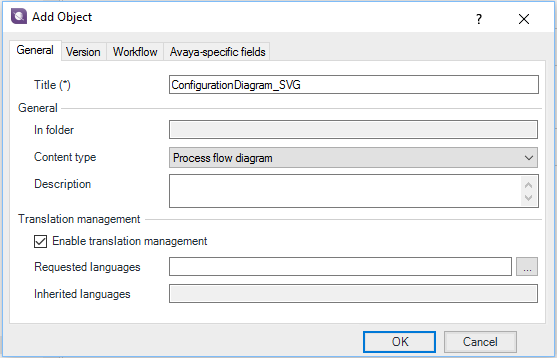
Do not select any languages; the Localization team must do that.