Creating a video publication

Last Updated : Feb 27, 2023 |

About this task

Create a separate publication where you can add all video topics.

Procedure

  1. Create a new publication using the new Video Publication template.

    Ensure that the Publication type is set to Videos.

  2. Create a new bookmap using the new Videos map template.
    Note:

    Do not add the legal topic or any normal topic such as, concept, task, and reference in the Videos bookmap.

  3. Create chapter maps to organize your video topics.
  4. Create a reference type topic and check out the topic.
  5. Press Enter, select the object element, and add the following attributes from the Attributes window:
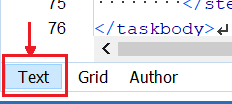
  6. In Oxygen XML Author, go to the Text view at the lower-left corner, and add the full view parameter <param name="allowfullscreen" value="true" /> inside the object element.


    For example:

    <object data="https://cdn.avaya-learning.com/CDN_EU/xxxxxx" outputclass="iframe">
    <param name="allowfullscreen" value="true" />
    </object>
  7. Repeat Steps 4 through 6 for each video.
    Note:

    Add one video in a topic.

  8. Add maps into the video publication and add the video topics into appropriate maps logically organizing the topics.
  9. Publish the AvayaDocPortal output to upload the videos publication on Avaya Documentation Center.