

AVAYA DOCUMENTATION CENTER
Find answers to your technical questions and learn how to use our products
Using IP Office SoftConsole
Using the Directory
The console panel on the right usually displays the directory of telephone names and numbers. It can include the directory entries from the telephone system, the console's own local directory and contacts from Outlook.
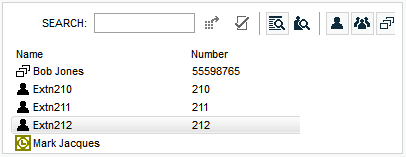
Changes to the telephone system directory are updated automatically every 30 minutes. They are also updated when make a manual search using the directory (up to a maximum of every 5 minutes).
Directory Controls
You can use these controls to select what information is displayed in the directory panel.
 |
Call the selected entry: Make a call to the selected directory entry. |
 |
Edit the selected entry: Edit the properties of the directory entry. The settings menu displayed depends on the type of entry. |
 |
View directory items: Switch between viewing details of a selected contact/conferences/other information and viewing the directory. |
 |
View active conferences: Use the directory panel to view conferences being hosted by the telephone system. |
 |
Show/hide users: Show or hide telephone system users in the displayed list of directory contacts. |
 |
Show/hide groups: Show or hide telephone system groups in the displayed list of directory contacts. |
 |
Show/hide directory contacts: Show or hide other contacts in the displayed list of directory contacts. |
Directory Icons
These icons indicate the type each contact shown in the directory.
|
User: A user on the telephone system. |
|
Hunt Group: A hunt group on the telephone system. |
|
Directory: A directory entry from the telephone system directory or the console’s local directory. |
 |
Outlook Contact: A contact from Microsoft Outlook running on the same PC as the console. |
Directory Entry Details
When the search has only one remaining match or when you double-click on a particular entry, the directory changes to show details for that entry. The information to display can be configured through the console settings.
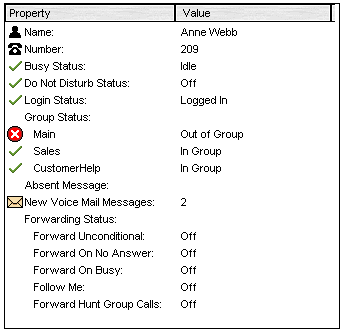
To return to the full directory listing, remove the text from the search box. Alternatively, select (Ctrl + S).