

AVAYA DOCUMENTATION CENTER
Find answers to your technical questions and learn how to use our products
Using IP Office SoftConsole
The Main Window
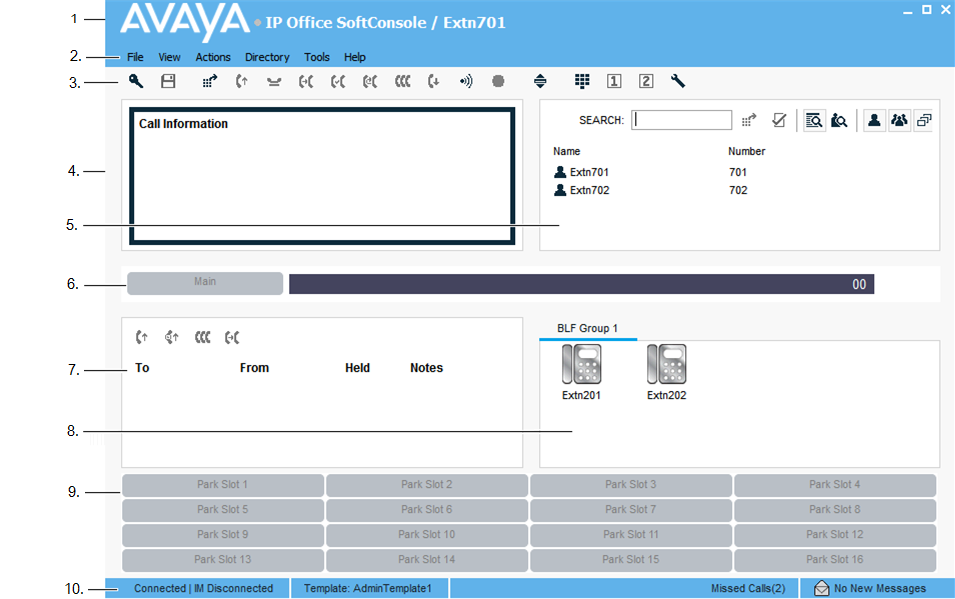
In normal view mode, the screen is divided into the possible areas shown in the following image. The profile or template you select when logging in sets whether held calls, BLF, and park slots are shown.
Option |
Description |
|---|---|
1. Title bar |
Contains the name of the logged in person. By default, the title bar appears in the following colors:
|
2. Menu bar |
Commands and actions are available through menus. Some items are only accessible when the right conditions occur, such as a ringing call. |
3. Toolbar |
Provides shortcuts for options that are frequently used. The toolbar can be shown or hidden using the View menu. |
4. Call details panel |
Contains a side-by-side display of current call information. The panel on the left contains details of the current or alerting call. |
5. Directory panel |
The panel on the right contains the directory and individual extension details. The panel on the right can also contain a script file or conferencing details. |
6. Queue panel |
Displays graphical information on the status of calls held in queues. |
7. Held calls panel |
Lists call that are on hold. |
8. BLF panel |
Displays icons that represent numbers you can dial. If the icons represent internal users, the user status is indicated. |
9. Park slots panel |
Contains up to 16 Park Slot buttons. |
10. Status bar |
Confirms that you are connected to the telephone system and the profile that you are using. The bar also displays the number of new messages and missed calls. |
11. Call history panel |
Shows a list of recent incoming, outgoing, and missed calls. When selected, the call history replaces the Held calls and BLF panels. |