

Using a Conference Room

Last Updated : Mar 20, 2019 |

About this task

The and buttons in the main toolbar represent the two conference rooms. You can use the conference rooms to start conferences with multiple participants.

If the conference buttons are available, you can create a conference. If the buttons are unavailable, the conference room names have not been created. See Naming conference rooms.

Procedure

  1. Click either or .
    If a conference room is in use, the BLFs in the window show the delegate’s status. If the conference room is not currently in use, the window is blank.
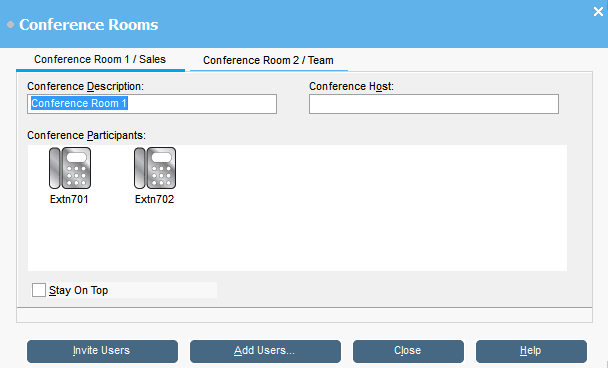
    Conference Rooms screenshot

  2. To create a new conference, in the Conference Description field, type the subject of the conference.

    The subject only shows in the field.

  3. In the Conference Host field, type the name of the person who has requested the conference.

    The name is shown when viewing current system conferences in the Directory panel.

  4. Enter the users for the conference.
    1. Click Add Users.
    2. Select the users from the directory list.
    3. If you add a user by mistake, right-click the user BLF and select Remove.
  5. Invite the users to the conference using one of the following methods:
    • Automatic Invitation: To use the voicemail system to automatically invite users, click Invite Users. The BLF icons show with a yellow outline. Each user is rung and invited to the conference. The voicemail server invites users in batches of up to 5 depending on available connections. When the user answers, they are invited to join the conference. The conference icons change automatically to indicate the user’s response. The user can respond in the following ways:

      This option is only available on systems with Voicemail Pro.

      • Press 1 to accept the invitation.

      • Press 2 to decline the invitation.

      • Press 3 to indicate that they are unavailable.

    • Manual Invitation: To invite users manually, right-click on each user and select Call.

      • If they accept, click either Add to conference 1 or Add to conference 2 from the Actions menu.

      • If the user is unavailable or has declined the invitation, and the call, and right-click on the BLF to change the status accordingly to record the delegate’s response.

  6. Once a conference is in progress, you can add additional users using Add to conference 1 or Add to conference 2.

    You can add users to a conference room by dragging and dropping BLFs into the conference window. You can use BLFs representing both internal and external numbers.