

Adding tasks to a timetable

최근 업데이트 : Feb 15, 2016 |

About this task

This topic provides the procedure for adding tasks to an existing timetable. This feature enables you to add tasks to a timetable in the same way you added tasks when you first created the timetable.

Procedure

  1. From the CMS main menu, press F4 (Keep).
  2. Select Timetable and press the Enter key.

    CMS displays the Timetable window.
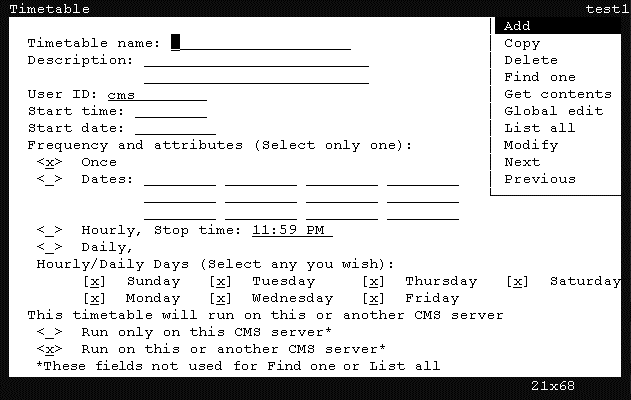


  3. Press Ctrl+Z.

    The fields in the window are cleared of all default information.

  4. In the Timetable name field, enter the name of the timetable to which you want to add a task.
  5. Press the Enter key.

    CMS shifts focus to the action list.

  6. In the action list, use the arrow keys to select Get contents and press the Enter key.

    CMS displays the Timetable: Get Contents window.
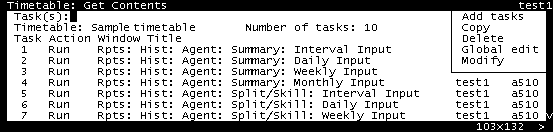


  7. In the Task(s) field, enter the number of the task that you want to precede the task being added.

    If the task being added should appear as the fifth task, enter 4 in the Task(s) field.

    To add a task to the beginning of the timetable, leave the Task(s) field blank. The new task is added before the first task.

    To add tasks to a timetable with no tasks, leave the Task(s) field blank.

  8. Press the Enter key.

    CMS shifts focus to the action list.

  9. Use the arrow keys to highlight the Add tasks item and press the Enter key.

    CMS displays the Main Menu and is waiting for you to perform an action that it can add as a task. The status line of the Main Menu displays Keeping Entries.

  10. Perform the task that you wish to have added to timetable.

    For more information on the steps necessary in adding a task to a timetable, see Step 12 in Creating and scheduling a timetable.

    When the task is performed, CMS displays Entries Stored in the status line.

  11. Exit the task window.

    CMS displays the Main Menu.

    At this point, more tasks can be added simply by performing them. These tasks will be added to the timetable in order following the previous task.

  12. If you finished adding tasks to the timetable, open the Keep SLK menu and then select the Stop option.

    CMS displays a confirmation window asking if the timetable should be saved.

  13. Press the Y key and then the Enter key.

    CMS saves the timetable with the newly added tasks and displays the Timetable: Get Contents window.