

AVAYA DOCUMENTATION CENTER
Find answers to your technical questions and learn how to use our products
Administering Avaya IP Office with Web Manager
Google Administrator Access to the External Storage
Once some recordings have been copied to the external storage (see Archiving Recordings to the External Storage), you can access the archive file. When you have the file's URL, you can open the file in a browser window.
You can also share the file URL with other users once you setup permissions for them to access the folder contents.
- Log into the Google Cloud Platform using the user account that was used to create the storage bucket.
- If necessary, select the project under which the storage was created.
- On the dashboard, locate Resources and click on Storage.
- In the objects list, click on the bucket name.
- Click on the name of the folder used to store the archived recordings.
- Locate the VRLArchiveRecordings.html file. To speed up finding the file, enter VRL in the filter box to show only matching file names.
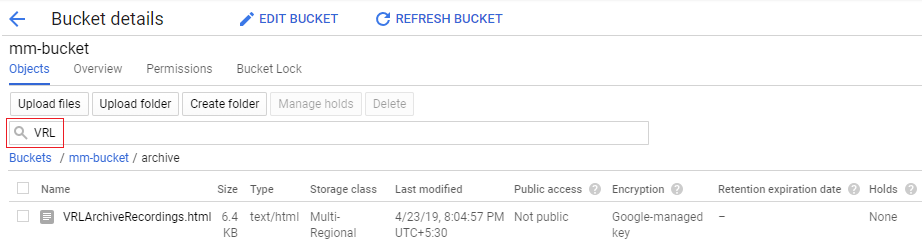
- Click on the file name to display the file details.
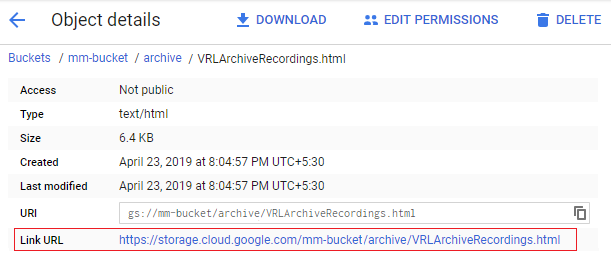
- The Link URL is the value needed for browser access to the list of recordings in the archive.
-
To open the page in the browser: Right-click on the value and select Open link in a new window. The recordings listing page is displayed, see The Archive Listing Page. If required, bookmark the address for your future access.
-
To copy the value in order to share it with another user: Right-click on the value and select Copy link address. Paste the link into the email or document being prepared for the other user. Note that you need to create permissions for the other user to access the files. See Allowing Access to the External Storage by Other Users.
-