AVAYA DOCUMENTATION CENTER
Find answers to your technical questions and learn how to use our products
Administering Avaya Aura® Session Manager
System Manager web console
System Manager provides centralized access to all Avaya Aura® elements through a browser-based Avaya management console with a Single Sign-on.
Note:
On a client, a single sign-on workflow must have the same domain name as System Manager. The domain name of the System Manager server must match that of the web client-server. For instance, if the hostname of System Manager is smgr.ca.avaya.com, the server with the web client can have a hostname such as client.ca.avaya.com or client.us.avaya.com.
With System Manager, you can open seven tabs simultaneously. The default number of tabs to open is five. However, you can set the value to the maximum of seven on the System Manager Web Console. The pages that are opened in each tab should be from different Element Managers. If you open pages falling under the same Element Manager, you may encounter an error based on the operation you are performing. For example, editing the same station in two tabs may throw an error message.
The resolution of the System Manager web console is 1024×768. The System Manager web console provides the following:
Corporate logo: You can add a logo on the web console.
Options icon (
 ): You can navigate to Help, About, Change Password, and Log Out links.
Shortcuts: You can set shortcuts to various pages by hovering the mouse on menu options and dragging an item to the Shortcuts area. You can also delete the shortcuts.
Note:If you have user preferences (shortcuts) associated with users in version 7.1.x or lower, they are not retained if you upgrade to version 8.0 or higher. You must recreate the shortcuts.
Quick Navigator: You can type the name of the link to search. The web console displays all related links with the search text on the top-right corner of the page. You can click a link to navigate to the specific page.
A message on the web console prompting you to restart the System Manager virtual machine after a patch installation if the kernel is upgraded.
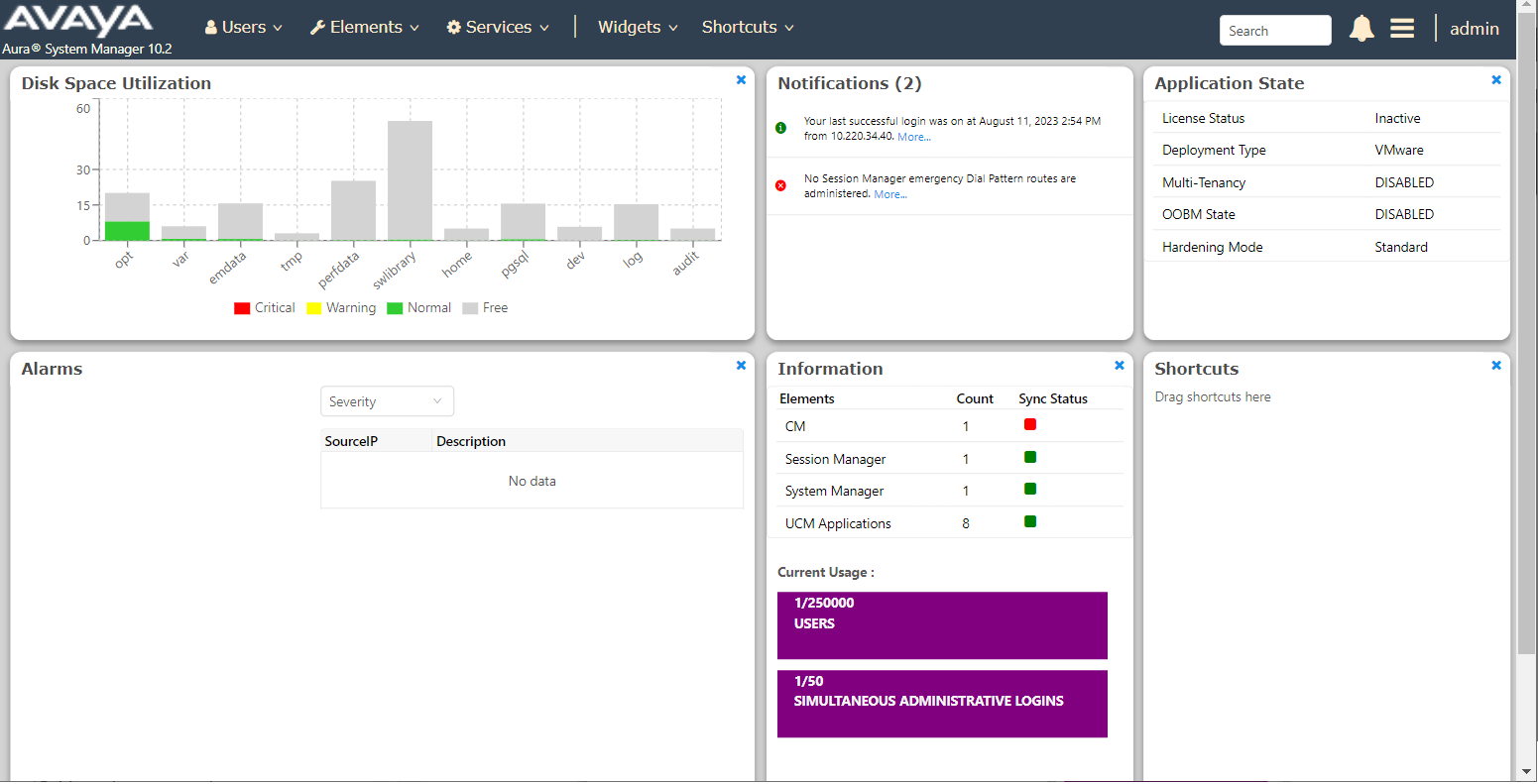
All the operational links are available under different menus, such as, Users, Elements, Services, Widgets, and Shortcuts.
By default, the System Manager dashboard displays the following widgets:
Alarms
Application State
Notifications
Disk Space Utilization
Information
Shortcuts
Note:
After login, if you remove one of the default widgets, then it is available under the Widgets menu.
From System Manager Release 8.1.3.1 and later, you cannot close the Notifications widget. If you closed the Notifications widget during the last login on the System Manager Release 8.1.3 and earlier, then after upgrading to System Manager Release 8.1.3.1 and later, the system displays the default dashboard layout.