

AVAYA DOCUMENTATION CENTER
Find answers to your technical questions and learn how to use our products
Administering Avaya Aura® Session Manager
Configuring SIP core redundancy
About this task
You can configure the Remote Worker solution with multiple core Session Manager instances for added redundancy and resiliency of the Session Manager connection from the endpoint device.
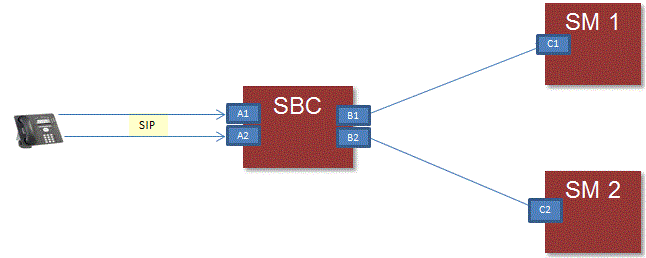
For configuring the core redundancy solution, perform the following:
Configure multiple external facing interfaces, such as reference point A1 and reference point A2, for each Session Border Controller.
Associate the reference point A1, A2 with distinct Session Manager instances (SM1 and SM2 with reference point C1 and C2 respectively) to enable the registered endpoints to failover in the case of a loss of connection to Session Manager.
Configure the SIP Private Address (reference point B1 and reference point B2) for Session Border Controller.
The remote endpoint simultaneously registers with:
Core Session Manager (SM1) through reference point A1
Core Session Manager (SM2) through reference point A2
Session Border Controller in the Remote Worker configuration proxies addresses in both directions. Session Manager interprets all communication, from remote endpoints that traverse Session Border Controller, as having a Session Border Controller address (reference point B1 or B2). The remote endpoints interpret Session Manager as having the public address of Session Border Controller (reference point A1 or A2).
Where,
SIP Proxy Public IP Address (reference point A) and SIP Proxy Public FQDN (reference point A) are the Public IP address and Public FQDN of the enterprise Session Border Controller.
Session Manager (reference point C) is the IP address of the selected Session Manager instance.
SIP Private Address (reference point B) is the Private IP address of the enterprise Session Border Controller.
When SM1 fails or connection to SM1 is lost, the registered SM2 instance can serve the registered endpoints.