

AVAYA DOCUMENTATION CENTER
Find answers to your technical questions and learn how to use our products
Deploying Avaya Aura® Device Services
Deploying Avaya Aura Device Services on ASP R6.0.x (KVM on RHEL 8.10) using KVM Cockpit
Before you begin
Install ASP R6.0.x (KVM on RHEL 8.10).
For more information, see Installing the Avaya Solutions Platform 130 Series at https://support.avaya.com/css/public/documents/101091802.
Download the Avaya Aura® Device Services KVM image aads-kvm-10.2.0.0.70.ova from PLDS to your computer.
Login to the ASP R6.0.x CLI with custadm credentials.
Ensure that the staging folder exists: /var/lib/libvirt/staging.
sudo ls -ld /var/lib/libvirt/images
Ensure to remove the older images from the staging folder.
Ensure sufficient space is available in the staging folder to copy the KVM image.
If the staging folder does not exist, create it using the following commands:
sudo mkdir /var/lib/libvirt/staging
sudo chown custadm:wheel /var/lib/libvirt/staging
Copy the Avaya Aura® Device Services KVM image aads-kvm-10.2.0.0.70.ova to the ASP R6.0.x host in /var/lib/libvirt/staging using the winscp tool and custadm credentials.
If not still in the CLI, login again to the ASP R6.0.x CLI with custadm credentials.
Note:
All the following commands must be prefaced with “sudo”:
Run the following command to verify the Avaya Aura® Device Services KVM image available in the staging folder: sudo ls -lr /var/lib/libvirt/staging
Go to /var/lib/libvirt/staging folder, and run the following command to extract the ova file: sudo tar -xvf aads-kvm-10.2.0.0.70.ova
KVM OVA file extracts the following files:
aads-10.2.0.0.70_OVF10.mf
aads-10.2.0.0.70_OVF10.ova
aads-10.2.0.0.70_OVF10.ovf
aads-10.2.0.0.70_OVF10.cert
disk1.qcow2
disk2.qcow2
disk3.qcow3
disk4.qcow2
The extracted qcow2 images are in thin provision format. The qcow2 images MUST be converted to thick provision. Ensure you are in the /var/lib/libvirt/staging directory before proceeding. When running the commands to convert to thick provision, a unique identifier can be added to the new qcow2 image. Avaya recommends to use VM name as a unique identifier. Convert disk1.qcow2(thin) to AADS10.2[unique identifier]-disk1.qcow2 (thick). For example:
sudo qemu-img convert -O qcow2 -o preallocation=full disk1.qcow2 AADS10.2[unique identifier]-disk1.qcow2
sudo qemu-img convert -O qcow2 -o preallocation=full disk2.qcow2 AADS10.2[unique identifier]-disk2.qcow2
sudo qemu-img convert -O qcow2 -o preallocation=full disk3.qcow2 AADS10.2[unique identifier]-disk3.qcow2
sudo qemu-img convert -O qcow2 -o preallocation=full disk4.qcow2 AADS10.2[unique identifier]-disk4.qcow2
To verify that the conversion is successful and verify the disk size, run the following commands:
sudo qemu-img info disk1.qcow2
Disk size must display as 2.4GB
sudo qemu-img info AADS10.2[unique identifier]-disk1.qcow2
Disk size must display as 125GB
Copy the AADS10.2[unique identifier]-disk1.qcow2, AADS10.2[unique identifier]-disk2.qcow2, AADS10.2[unique identifier]-disk3.qcow2 and AADS10.2[unique identifier]-disk4.qcow2 qcow2 to the /var/lib/libvirt/images directory. Ensure you are in the /var/lib/libvirt/staging directory before performing these steps.
sudo cp /var/lib/libvirt/staging/ AADS10.2[unique identifier]-disk*.qcow2 /var/lib/libvirt/images/
cd /var/lib/libvirt/images/
sudo ls -lr
From the /var/lib/libvirt/images directory, run the following command to change the owner and permissions to 640 on the files:
sudo chown qemu:qemu AADS10.2[unique identifier]-disk*
chmod 640 AADS10.2[unique identifier]-disk*
Go to /var/lib/libvirt/staging directory and remove all the extracted images and converted images. This is important to ensure that there is sufficient space for future deployments of KVM images. Do NOT remove files from the “images” directory.
cd /var/lib/libvirt/staging
sudo ls -lr
sudo rm *AADS*
Ensure that the network bridge is configured during the KVM deployment.
Procedure
- For administration actions, on the top-right of the window, click on the Limited access button.
Figure : 1. Limited access button
Note:You require administrator access in order to view virtual machines. Administrator access is like root access. Ensure that you take care making updates.
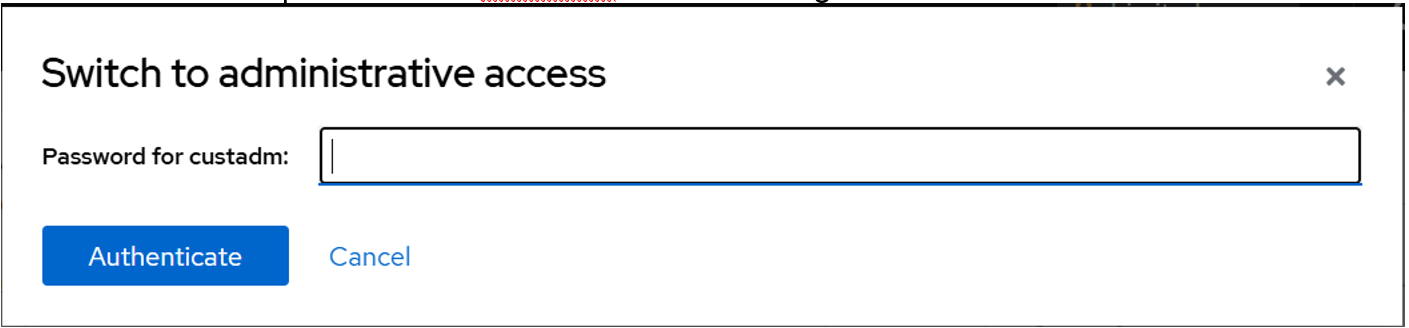
- In the Switch to administrative access window, enter the password for custadm.
Figure : 2. Switch to administrative access
The Limited access button on the top-right of the window changes to Administrative access.
Figure : 3. Administrative access button
Next Steps
On first boot of the Avaya Aura® Device Services configure the AADS virtual machine, network properties and follow the Avaya Aura® Device Services deployment guide.
Existing instructions for installation of these artifacts using the CLI and UI are applicable. Note that the “snapshot” functionality present in ASP R5.1.x and earlier is replaced with an equivalent feature, titled Virtual Machine Backup (clone).
For more information about the Virtual Machine Backup (clone), see Appendix of the Avaya Aura® Device Services deployment guide.