AVAYA DOCUMENTATION CENTER
Find answers to your technical questions and learn how to use our products
Avaya Aura Presence Services Snap-in Reference
Configuring a TLS Server Profile used to receive connections from the Session Manager
- Log in to the Avaya Session Border Controller for Enterprise server as an administrator.
- Click .
- Click Add, and enter an appropriate name for the profile.
For example: serverProfileInternal.
- Select the Avaya Session Border Controller for Enterprise identity certificate created earlier, from the certificate menu.
- If you require peer certificate verification, enable Peer Verification.
- Load the peer CA certificate.
- Click .
- Browse to the certificate file and click upload.
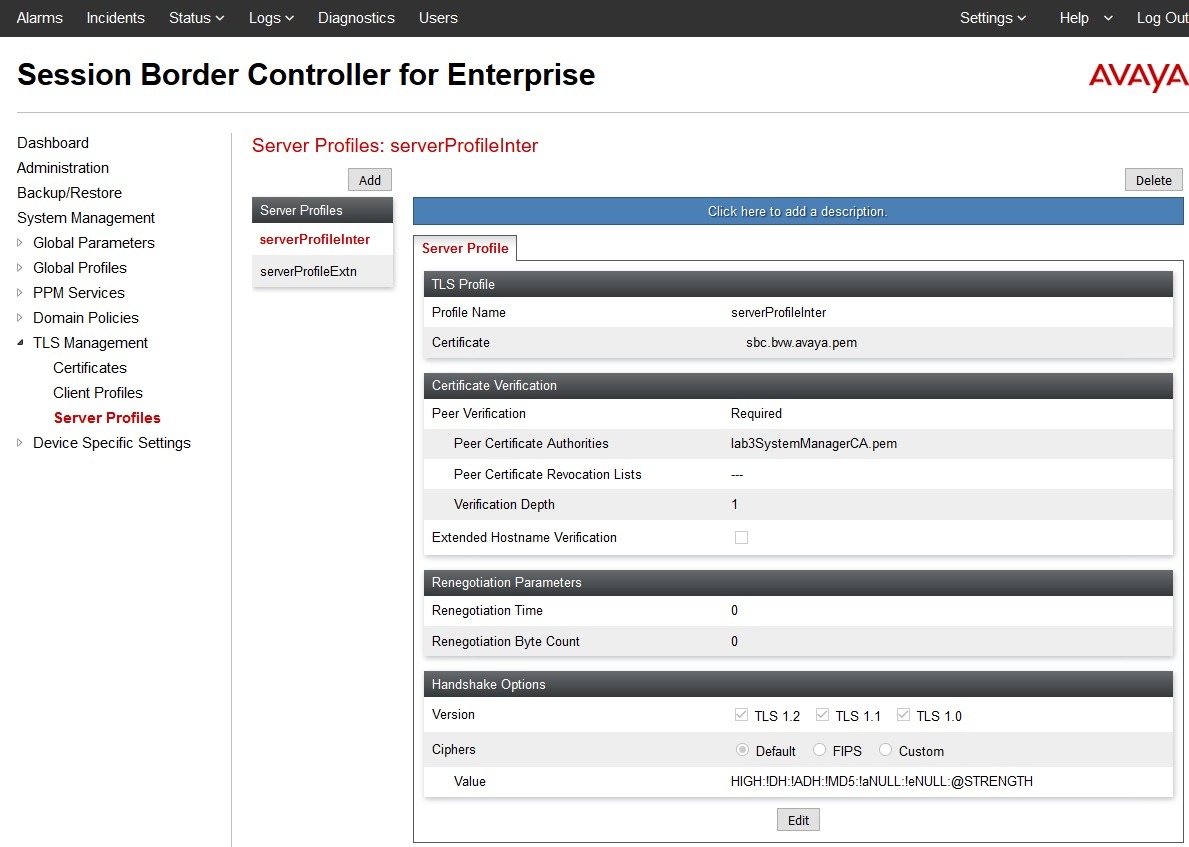
ADDITIONAL INFORMATION:In the following example, the peer CA certificate is lab3SystemManagerCA.pem, which is used to sign the Session Manager identity certificate.
- Select a verification depth of 1.
- Select the required version of TLS.
ADDITIONAL INFORMATION:Avaya recommends that you select TLS 1.2.
- Customize the encryption ciphers as required.
The following figure shows a sample TLS Server Profile used to receive connections from the Session Manager.