AVAYA DOCUMENTATION CENTER
Find answers to your technical questions and learn how to use our products
Avaya Aura Presence Services Snap-in Reference
Configuring Media Interfaces
- Log in to the Avaya Session Border Controller for Enterprise server as an administrator.
- Create an internal media interface.
- Click .
- Click Add.
ADDITIONAL INFORMATION:The Edit Media Interface dialog box displays.
- In the Name field, enter a name for the internal media interface.
- In the IP Address field, select internal (A1, VLAN 0).
- Select an internal IP address.
- In the Port Range field, verify that the default port range is acceptable.
- Click Finish.
ADDITIONAL INFORMATION: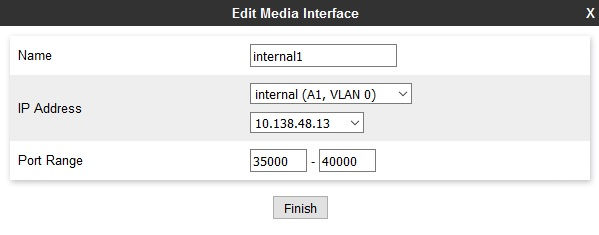
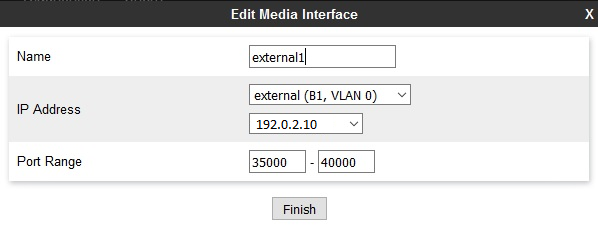
- Create an external media interface.
- Click .
- Click Add.
ADDITIONAL INFORMATION:The Edit Media Interface dialog box displays.
- In the Name field, enter a name for the external media interface.
- In the IP Address field, select external (B1, VLAN 0).
- Select an external IP address.
- In the Port Range field, verify that the default port range is acceptable.
- Click Finish.
ADDITIONAL INFORMATION: