AVAYA DOCUMENTATION CENTER
Find answers to your technical questions and learn how to use our products
Avaya Aura Presence Services Snap-in Reference
Configuring Presence Services attributes to enable tandem domain support
- On the System Manager web console, navigate to .
- Click Attributes.
- On the Service Clusters tab, in the Cluster field, click the Presence Services cluster.
- In the Service field, click the Presence Services service.
- On the Attributes Configuration page, navigate to the Microsoft Federation group.
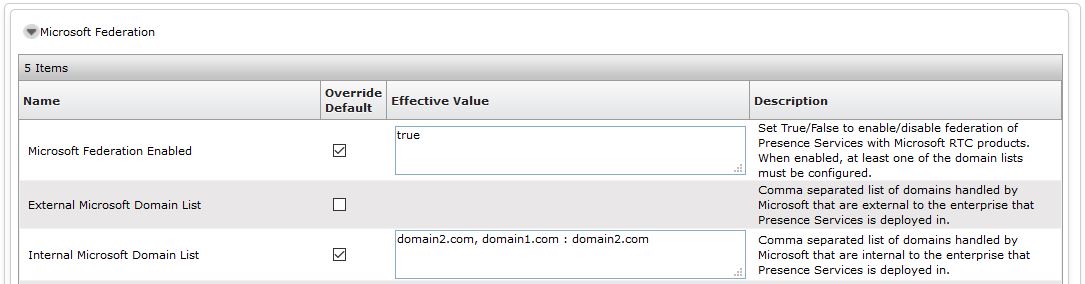
- In the Microsoft Federation Enabled field, in Effective Value, click True.
- In the Internal Microsoft Domain List field, in Effective Value, type the list of Microsoft domain names.
ADDITIONAL INFORMATION:Use a comma as a separator to specify multiple Microsoft domains.The syntax for configuring a tandem domain is: “target-domain-name : tandem-domain-name”.
- To override the default value, select the Override Default check box.
- Click Commit.
ADDITIONAL INFORMATION:The following diagram shows the “Internal Microsoft Domain List” to be domain2.com, and domain1.com:domain2.com. This is the correct configuration for the diagram shown in the Microsoft federation with internal Avaya Aura domain and external Microsoft domain section.The first entry “domain2.com” is used to federate in domain #2 between Microsoft and Avaya Aura users. The second entry “domain1.com : domain2.com” is used to federate between Microsoft users in domain #1 and the Avaya Aura users in domain #2. This configuration instructs Presence Services to use domain2.com as a tandem to reach Microsoft users in domain1.com.