

AVAYA DOCUMENTATION CENTER
Find answers to your technical questions and learn how to use our products
Avaya Aura® Communication Manager Screen Reference
Agent Login ID
In an Expert Agent Selection (EAS) environment, use the Agent Login ID screen to:
Add an agent login ID.
Change the options of an agent login ID.
Assign skills to an agent login ID.
To change the value of fields on the Agent Login ID screen, use one of the following commands:
change agent-loginID n, where n is the agent login ID.
For any changes to take effect, the agent must log out and log in again.
change agent-loginID n auto, where n is the agent login ID.
For the changes related to the skill set to take effect, the system logs out and logs in the agent. However, for the other changes to take effect, the agent must log out and log in again.
Agent Login ID: page 1
AAS
Use this field to enable the system to use the agent login ID as a port for Auto Available Split/Skill (AAS).
Valid entry |
Usage |
|---|---|
n |
To use the agent login ID as a port for the switch adjunct equipment. |
y |
To use the agent login ID as a port for AAS. If you use this option, you must run the remove Agent-LoginID command. |
ACW Agent Considered Idle
Use this field to include the After Call Work (ACW) agents in the Most-Idle Agent (MIA) queue.
Valid entry |
Usage |
|---|---|
system |
To apply the systemwide values. |
n |
To exclude the ACW agents from the MIA queue. |
y |
To include the ACW agents in the MIA queue. |
AUDIX
Use this field to enable the system to use the agent login ID as a port for voice messaging.
If an agent login ID is used as a port for AAS, the agent login ID cannot be used as a port for voice messaging.
Audix Name for Messaging
Use this field to assign a name to the messaging system that is used for Leave Word Calling (LWC) reception. The messaging system also provides call coverage to the agent login ID.
Auto Answer
Use this field to enable the auto answer setting of the agent login ID.
Valid entry |
Usage |
|---|---|
station |
The auto answer setting on the station overrides the auto answer setting of the agent. |
acd |
The auto answer setting applies only to the ACD and direct agent calls. The agent extension gets a ringing tone for non-ACD calls. |
none |
The auto answer setting is disabled. The agent extension gets a ringing tone for all calls. |
all |
The auto answer setting applies to all ACD and non-ACD calls to the agent. For non-ACD calls, the agent extension receives a single ring. To prevent the ring, use the ringer-off button. |
Aux Work Reason Code Type
Use this field to specify whether the agent must enter a reason code when changing to the AUX work mode.
Valid entry |
Usage |
|---|---|
system |
The systemwide settings apply. |
none |
The agent must not enter a reason code when changing to the AUX work mode. |
requested |
The agent can enter a reason code when changing to the AUX work mode. |
forced |
The agent must enter a reason code when changing to the AUX work mode. |
COR
Use this field to assign a class of restriction (COR) number to the agent login ID. You can enter a value from 0 to 995. The default value is 1.
Coverage Path
Use this field to specify the coverage path used by the calls to the agent.
The coverage path is used when:
The agent is logged out.
The agent does not answer.
The agent is attending a personal call while logged in.
Valid entry |
Usage |
|---|---|
blank |
Use this option if you do not want to enter a coverage path. |
1 to 199 |
Use this option to enter a coverage path number. The upper limit might change depending on the system configuration. For more information, see Avaya Aura® Communication Manager System Capacities Table. |
t1 to t199 |
Use this option to enter a time-of-day table number. |
Direct Agents Calls First
Use this field to enable the system to select the direct agent calls before other ACD calls. The system displays this field only if you set the Call Handling Preference field to percent-allocation.
Forced Agent Logout Time
Use this field to specify the time at which the system must log out the agent.
Valid entry |
Usage |
|---|---|
blank |
Use this option if you do not want to specify the time at which the system must log out the agent. |
00, 15, 30, or 45 |
Use this option to enter the time in minutes. |
01 to 23 |
Use this option to enter the time in hours. |
Login ID
This field displays the login id for the agent.
LoginID for ISDN Display
Valid Entry |
Usage |
|---|---|
y |
The Agent LoginID CPN (Calling Party Number) and Name are included in ISDN messaging over network facilities. |
n |
Default. The calling party name and number are determined by the conditions administered for the trunk group. |
Logout Reason Code Type
Use this field to specify whether the agent must enter a reason code when logging out.
Valid entry |
Usage |
|---|---|
system |
The systemwide settings apply. |
none |
The agent must not enter a reason code when logging out. |
requested |
The agent can enter a reason code when logging out. |
forced |
The agent must enter a reason code when logging out. |
LWC Reception
Use this field to specify the location where the system must store the LWC messages.
Valid entry |
Usage |
|---|---|
spe |
Use this option to store the LWC messages on Switch Processor Element (SPE). |
none |
Use this option if you do not want to store the LWC messages. |
audix |
Use this option to store the LWC messages on the voice messaging system. |
Maximum time agent in ACW before logout (sec)
Use this option to enter the maximum time an agent can be in ACW on a per agent basis.
Valid entry |
Usage |
|---|---|
system |
With this option, system-wide settings apply. This is the default option. |
none |
With this option, ACW timeout is inapplicable to the agent. |
30 to 9999 |
With this option, you can provide the number of seconds in a specific timeout period. The setting takes precedence over the system setting for maximum time in ACW. |
Messaging Server Name for Messaging
Use this field to assign a name for the messaging system that is used for LWC reception and that provides coverage for an agent login id. By default, the field is blank.
MIA Across Skills
Use this field to specify if the system must remove an agent from the MIA queue.
Valid entry |
Usage |
|---|---|
system |
With this option, system-wide settings apply. This is the default option. |
y |
With this option, the system removes an agent from the MIA queues for all the splits or skills for which an agent is available when the agent answers a call from any assigned splits or skills. |
n |
With this option, the system removes ACW agents from the queue. |
MWI Served User Type
Controls the auditing or interrogation of a served user’s message waiting indicator (MWI).
Valid Entries |
Usage |
|---|---|
fp-mwi |
The station is a served user of an fp-mwi message center. |
qsig-mwi |
The station is a served user of a qsig-mwi message center. |
sip-adjunct |
Used to audit message waiting lamps. |
blank |
The served user’s MWI is not audited or if the user is not a served user of either an fp-mwi or qsig-mwi message center. |
Name
Use this field to enter the name of the agent. You can enter up to 27 alphanumeric characters.
Note:
Supported by Unicode language display for the 4610SW, 4620SW, 4621SW, and 4622SW, 1600-Series, 9600-Series IP Deskphones, 9600-Series H.323 Deskphones, and Avaya J100 Series IP Phones. Unicode is also an option for the 2420J telephone when the Display Character Set is katakana. For more information about 2420J, see 2420 Digital Telephone User's Guide.
Password
Use this field to assign a password to the agent login ID.
The Minimum Agent-LoginID Password Length field specifies a minimum length for the password.
Password (enter again)
Use this field to enter the same password that you entered for the Password field.
Port Extension
Use this field to assign an extension to the port used for AAS or voice messaging.
You cannot use a vector directory number (VDN) or an agent login ID as a port extension.
Security Code
Use this field to enter the four-digit station security code for the Demand Print messages feature.
TN
Use this field to assign a tenant number (TN) to the agent login ID. The default value is 1. The upper limit might change depending on the system configuration. For more information, see Avaya Aura® Communication Manager System Capacities Table.
Unicode Name
This read-only field shows the assignment of Unicode Name to the agent.
Valid entry |
Usage |
|---|---|
n |
Unicode Name is not assigned to the agent. |
y |
Unicode Name is assigned to the agent. |
For more information on Unicode Language Display, see Administering Avaya Aura® Communication Manager.
Agent Login ID: page 2
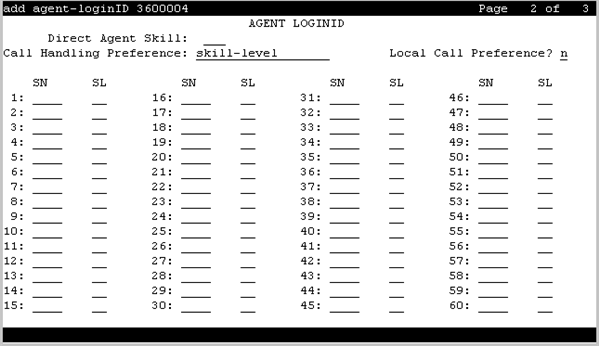
Call Handling Preference
Use this field to specify the call that the agent must receive when calls are in queue.
Valid entry |
Usage |
|---|---|
skill-level |
For the oldest high priority call waiting for an agent with the highest skill level. |
greatest-need |
For the oldest high priority call waiting for an agent with any skill level. |
percent-allocation |
For the call waiting for an agent with a skill that deviates the most from the administered allocation. This option is available only with Avaya Business Advocate. |
Direct Agent Skill
Use this field to specify the skill number used to handle direct agent calls. You can enter a value from 1 to 99. The upper limit might change depending on the system configuration. For more information, see Avaya Aura® Communication Manager System Capacities Table.
Local Call Preference
Use this field to enable the Local Call Preference feature. The system displays this field only if you set the Multiple Locations field to y. For calls queued in more than one skill for a multiskilled EAS agent, the system gives preference to the calls whose trunk location number matches the location number of the previously busy agent. This feature is available only with Call Center Release 3.0 and later.
PA
Use this field to allocate a percentage of the agent time for each skill that you assign to the agent. The total allocation for all agent skills must be equal to 100%.
RL
Use this field to administer the agent as a reserve agent for a skill or a group of skills. You can assign a reserve level or an interruptible level.
The system displays this field only if you enable the Business Advocate feature.
Valid entry |
Usage |
|---|---|
1 or 2 |
Use this option to assign a reserve level to the agent. |
a |
Use this option to assign the auto-in-interrupt interruptible level to the agent. |
m |
Use this option to assign the manual-in-interrupt interruptible level to the agent. |
n |
Use this option to assign the notify-interrupt interruptible level to the agent. |
blank |
Use this option if you do not want to assign a reserve level or an interruptible level to the agent. |
Service Objective
Use this field to enable the Service Objective feature. The agent receives calls according to the ratio of Predicted Wait Time (PWT) or Current Wait Time (CWT) and administration of the Service Objective feature.
The Service Objective feature is available only with Avaya Business Advocate. The system displays this field only when you set the Call Handling Preference field to greatest-need or skill-level.
SL
Use this field to specify a skill level for every skill that you assign to the agent.
If you disable the Expert Agent Selection-Preference Handling Distribution (EAS-PHD) feature, you can enter up to two priority levels. If you enable the Expert Agent Selection-Preference Handling Distribution (EAS-PHD) feature, you can enter up to 16 priority levels.
SN
Use this field to assign a skill number to the agent.
If you disable the Expert Agent Selection-Preference Handling Distribution (EAS-PHD) feature, you can enter up to four skills. If you enable the Expert Agent Selection-Preference Handling Distribution (EAS-PHD) feature, you can enter up to 20 or 60 skills depending on the system configuration.