

AVAYA DOCUMENTATION CENTER
Find answers to your technical questions and learn how to use our products
Avaya Aura Communication Manager Feature Description and Implementation
Setting up Chime Paging over Loudspeakers
- Enter change paging loudspeaker.
ADDITIONAL INFORMATION:The system displays the Loudspeaker Paging screen (the figure).In this example, you set up chime paging for a clothing store with three zones. You allow users to page all three zones at once, and you assign a Class of Restriction (COR) of 1 to all zones.
Figure: Loudspeaker Paging screen 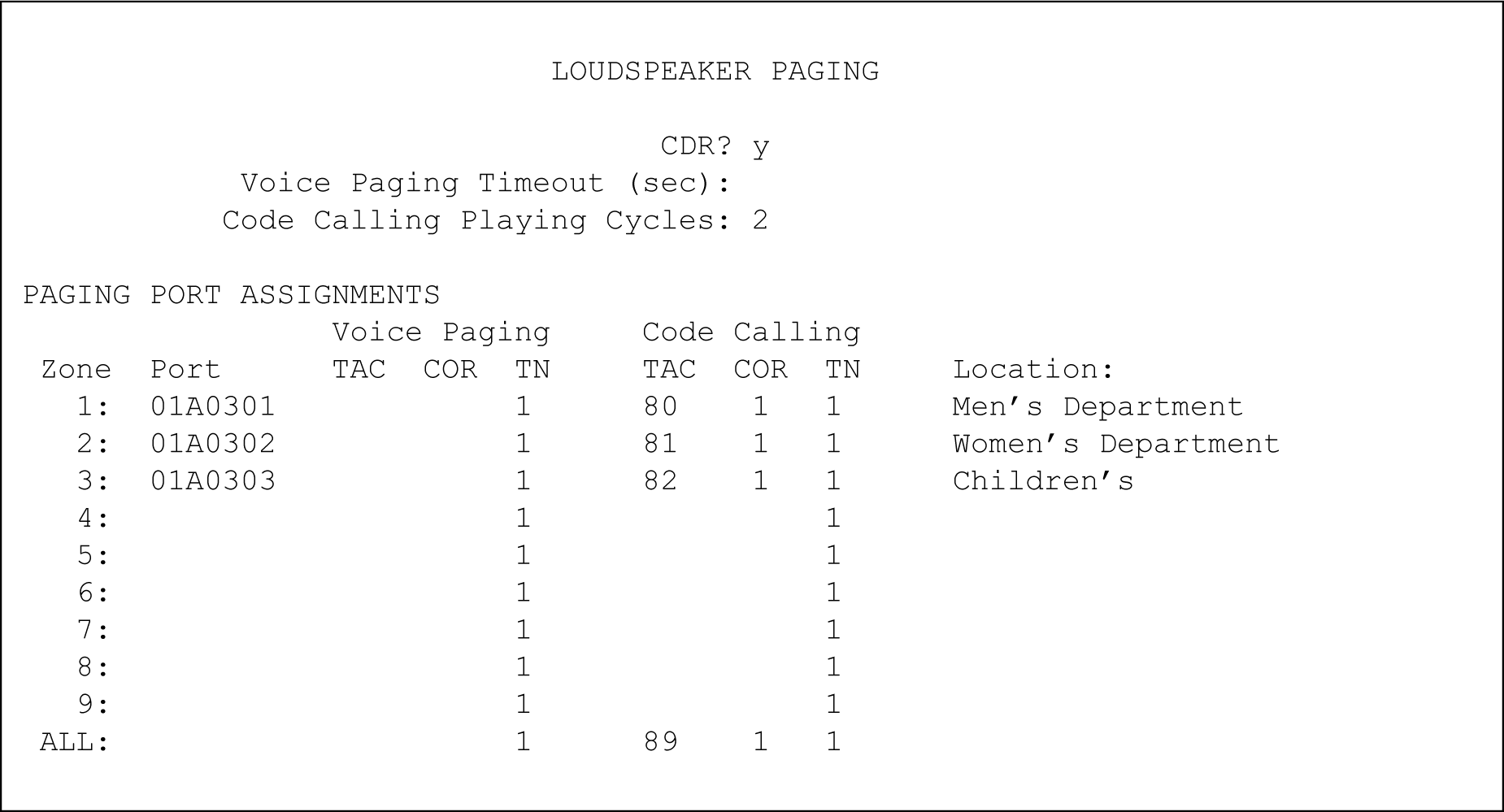
- In the Code Calling Playing Cycles field, type the number of times that a chime code plays when someone places a page.
- In the Port field for Zone 1, type the port number of the auxiliary trunk media module that is assigned to this zone.
ADDITIONAL INFORMATION:In this example, the port number is 01A0301.
- In the Code Calling - TAC field, type the Trunk Access Code (TAC) users dial to page this zone.
ADDITIONAL INFORMATION:You cannot assign the same trunk access code to more than one zone.In this example, the trunk access code is 80.
- In the Code Calling - COR field, type the COR number that is assigned to this zone. You can assign different classes of restriction to different zones
ADDITIONAL INFORMATION:In this example, the COR is 1.
- In the Zone 1 row of the Location field, type a descriptive name for the zone.
ADDITIONAL INFORMATION:Use this name to help you remember the corresponding physical location.In this example, the location is Men’s Department.
- Repeat steps 4 through 6 for zones 2 and 3.
- In the ALL row of the Code Calling - TAC field, type 89 and 1 in the Code Calling - COR field.
ADDITIONAL INFORMATION:When you complete this row, you allow users to page all zones at once. You do not have to assign a port to this row.
- Select Enter to save your changes.