Adding a trusted certificate to Communication Manager

Last Updated : Sep 30, 2016 |

Procedure

  1. Log in to a Communication Manager Web console.
  2. Click Administration > Server (Maintenance)
  3. Click Security > Trusted Certificates.
  4. Click Add.
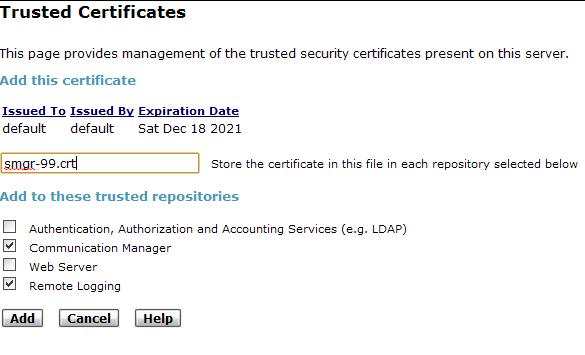
  5. On the Trusted Certificate – Add page enter the file name for the certificate you want to add. The certificate must be a .pem file. The name of the certificate must be the same as the one used in the Downloading the pem file to Communication Manager section.
  6. To validate the certificate, click Open.

    After a successful validation, the Trusted Certificates – Add page displays the issued-to, issued by, and expiration date information for the certificate you are adding.

    Note:

    The system displays an error message if the certificate is not a valid certificate.

  7. Select the Communication Manager, Remote Logging repositories from the list of trusted repositories.
  8. Click Add.

    The system verifies the following:

    • The certificate name has a .crt extension. If the certificate name has a different extension, the system deletes it and replaces it with a .crt extension.

    • The certificate name is unique and does not already exist.

    • The certificate is not a duplicate certificate with a new name.