AVAYA DOCUMENTATION CENTER
Find answers to your technical questions and learn how to use our products
Administering Avaya Aura® System Manager
Assigning permissions to access Solution Deployment Manager
About this task
System Manager provides access permissions to Solution Deployment Manager through Role Based Access Control (RBAC) for elements, such as Communication Manager, Session Manager, Branch Session Manager, and IP Office. System Manager defines flexible access privileges for deployment, migration, upgrade, and update so that the users with administrator credentials can create their own roles.
With RBAC, System Manager supports access privileges at the element level and physical location level.
Procedure
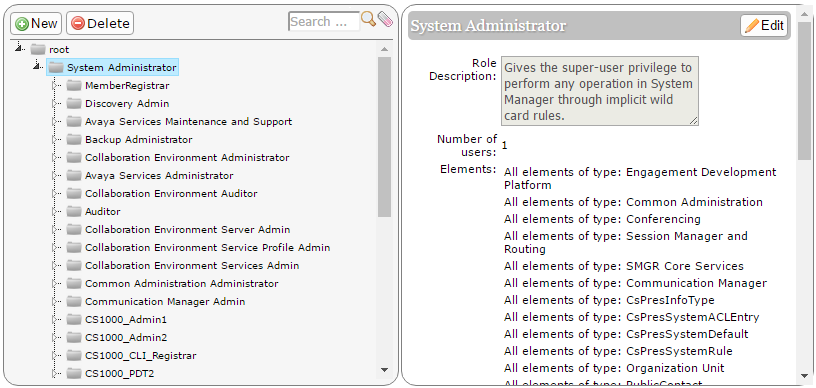
- On the Roles page, select an existing role, and perform one of the following steps:
Click New.
Right-click and select New.
The role that you selected becomes the parent of the role that you create. The permissions available to the new role limit to the permissions of the parent role.