Creating a tenant

Last Updated : Feb 05, 2018 |

Before you begin

  • Log on to the System Manager web console as Service Provider Administrator or Tenant Administrator.

  • Enable the Multi Tenancy feature.

  • After you enable Multi Tenancy, log off and log on to the System Manager web console again.

About this task

Use the procedure to create a tenant, assign a tenant administrator to the tenant, create tenant organization, and assign elements and user provisioning rule.

You can create one or more tenants.

System Manager supports maximum 250 tenant partitions as part of System Manager Multi Tenant Management.

Procedure

  1. On the System Manager web console, click Services > Tenant Management.
  2. On the Tenant Management page, click New Tenant.

    The system displays the Create Tenant page.

  3. On the Tenant Details tab, provide the details for the tenant.

    For more information, see Create Tenant field descriptions.

  4. On the Administrators tab, in the Assigned Admin Users section, perform the following:
    1. Click New.
    2. In the Create Admin User area, provide the details of the administrator that you want to assign to the tenant.
    3. Click Commit.
  5. Optional On the Organization Hierarchy tab, in the Organization level names section, change the names for Level 1, Level 2, and Level 3.

    Level 2 and Level 3 are optional.

  6. To view the new tenant node, click Update Hierarchy.

    If you do not click Update Hierarchy, the page does not display the new tenant that you created. Therefore, you cannot add a site to this tenant.

  7. Perform the following to add a site or level 1 organization to the tenant:
    1. In the Tenant Hierarchy section, select the tenant that you created and click Add.
    2. Provide the following details for the site:
      • Site Details: Details of the site. For more information, see Create Tenant field descriptions.

      • Elements: Perform the following:

      • To assign an element to the site, click the plus sign (+) in the Available Elements section.

        Click unassigns the user provisioning rule to unassign an element if required. You can assign more than one element to a site. The Selected Elements section displays the elements that you assign to the site. Provide the tenant number or tenant ID and the location number for the element.
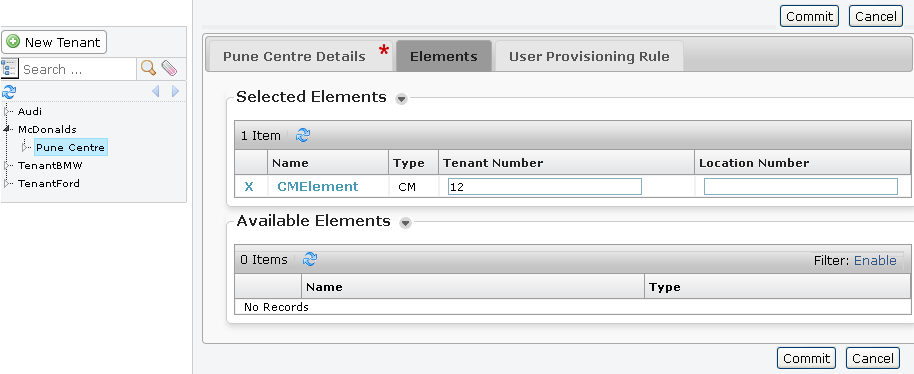


        Assigning elements to the site

        Note:

        The Communication Manager element that you select in the Elements tab and the User Provisioning Rule tab must be the same. If you select a different Communication Manager element, the tenant creation fails.

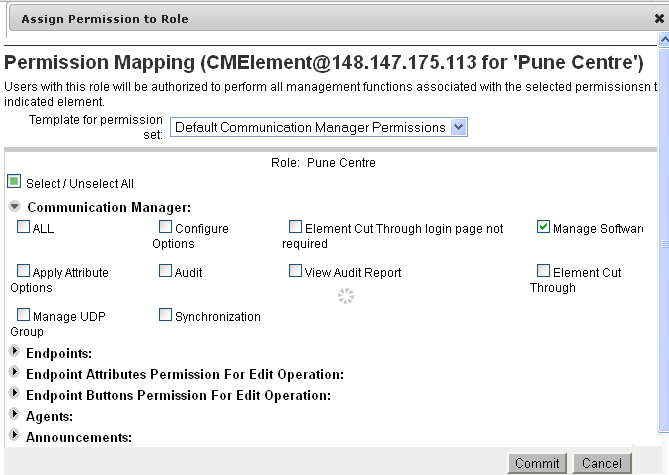
      • To assign permissions to the tenant administrator, click the element, select the permissions on the Permission Mappings page, and click Commit.

        For more information, see the Managing roles.


        Note:

        For Communication Manager, do not provide permissions for Audit, Element Cut Through, and Synchronization functions.

      • User Provisioning Rule: Click the plus sign (+) in the Available User Provisioning Rules section to assign a rule to the site. Click unassigns the user provisioning rule to unassign a user provisioning rule.

    3. Click Update Hierarchy to view the new site in the tenant organization.

      The system displays the site that you added to the tenant.

      If you do not click Update Hierarchy, the system does not display the new site that you created. Therefore, you cannot add a department to this site.

      Note:

      Add at least one site for the tenant.

    4. Repeat Step a through Step c to add more than one site for the tenant.
  8. Optional Perform the following to add a department or level 2 organization to the site:
    1. In the Tenant Hierarchy section, select the site, and click Add.
    2. Provide the details for the department.
    3. Click Update Hierarchy to view the new department in the tenant organization.

      If you do not click Update Hierarchy, the system does not display the new department that you created. Therefore, you cannot add a team to this department.

    4. Repeat Step a through Step c to add more than one department for the site.
  9. Optional Perform the following to add a team or level 3 organization to the department:
    1. In the Tenant Hierarchy section, select the department, and click Add.
    2. Provide the details for the team.
    3. Click Update Hierarchy to view the new team in the tenant organization.

      If you do not click Update Hierarchy, the system does not display the new team that you created.

    4. Repeat Step a through Step c to add more than one team for the department.
  10. Click Commit.

    The system displays the tenant organization on the Tenant Management page.

  11. Repeat Step 2 through Step 9 to create more than one tenant.