

AVAYA DOCUMENTATION CENTER
Find answers to your technical questions and learn how to use our products
Administering Avaya Aura® System Manager
New Endpoint / Template field descriptions
Use the fields to perform endpoint or template tasks. The page displays exclusive fields that occur for endpoints and templates apart from the General options, Feature Options, Site Data, Data Module/Analog Adjunct, Abbreviated Call Dialing, Enhanced Call Fwd, and Button Assignment sections.
Field descriptions for Endpoints
Name |
Description |
|---|---|
System |
Communication Manager to which the endpoint is assigned. |
Template |
Template that correspond to the set type of the endpoint. |
Set Type |
The set type or the model number of the endpoint. |
Name |
The name of the endpoint. The system displays the name on called telephones with display capabilities. In some messaging applications, such as Communication Manager Messaging, you enter the user name (last name first) and the extension to identify the telephone. The name is also used in the integrated directory. When you enter the first name and the last name of the user associated with an endpoint on User Management, the system populates Latin translation of the first name and the last name in the Name field. |
Field descriptions for Templates
Name |
Description |
|---|---|
Set Type |
The set type or the model of the endpoint template. |
Template Name |
The name of the endpoint template. You can enter the name of your choice in this field. |
Button |
Description |
|---|---|
Commit |
Saves the values that you enter and starts the add or edit operation. |
Schedule |
Displays the Job Scheduler where you can schedule the edit operation. |
Reset |
Clears the values that you enter on the page. |
Cancel |
Cancels the current operation and returns to the previous page. |
Extension
The extension for this station.
For a virtual extension, a valid physical extension or a blank can be entered. With blank, an incoming call to the virtual extension can be redirected to the virtual extension busy
or all
coverage path.
The extension length must be within 16 digits.
Port
The Auxiliary and Analog ports assigned to the station are as follows.
Valid Entry |
Usage |
|---|---|
x or X |
Indicates that there is no hardware associated with the port assignment since the switch was set up, and the administrator expects that the extension has a non-IP set. Or, the extension had a non-IP set, and it dissociated. Use x for Administered WithOut Hardware (AWOH) and Computer Telephony (CTI) stations, as well as for SBS Extensions. |
IP |
Indicates that there is no hardware associated with the port assignment since the switch was set up, and the administrator expects that the extension would have an IP set. This is automatically entered for certain IP station set types, but you can enter for a DCP set with softphone permissions. This changes to the s00000 type when the set registers. |
xxxVmpp |
Specifies the Branch Gateway.
|
Analog Trunk port |
Analog trunk port is available with:
|
Feature Options
With Features Options, you can set features unique to a particular voice terminal type.
Bridged Call Alerting
Controls how the user is alerted to incoming calls on a bridged appearance.
Valid Entry |
Usage |
|---|---|
y |
The bridged appearance rings when a call arrives at the primary telephone. |
n |
The bridged appearance flashes but does not ring when a call arrives at the primary telephone. This is the default. If disabled and Per Button Ring Control is also disabled, audible ringing is suppressed for incoming calls on bridged appearances of another telephone’s primary extension. |
Location
The system displays this field only when you set the Multiple Locations field on the system parameters customer options screen to y, and set the Type field to H.323 or SIP station types.
Valid entry |
Usage |
|---|---|
1 to 2000 |
(Depending on your server configuration, see Avaya Aura® Communication Manager System Capacities Table.) Assigns the location number to a particular station. Allows IP telephones and softphones connected through a VPN to be associated with the branch an employee is assigned to. This field is one way to associate a location with a station. For the other ways and for a list of features that use location, see the Location sections in Avaya Aura® Communication Manager Feature Description and Implementation. |
blank |
Indicates that the existing location algorithm applies. By default, the value is blank. |
Active Station Ringing
Defines how calls ring to the telephone when it is off-hook without affecting how calls ring at this telephone when the telephone is on-hook.
Valid Entry |
Usage |
|---|---|
continuous |
All calls to this telephone ring continuously. |
single |
Calls to this telephone receive one ring cycle and then ring silently. |
if-busy-single |
Calls to this telephone ring continuously when the telephone is off-hook and idle. Calls to this telephone receive one ring cycle and then ring silently when the telephone is off-hook and active. |
silent |
All calls to this station ring silently. |
Auto Answer
In an Expert Agent Environment (EAS) environment, the auto answer setting for an Agent LoginID overrides the endpoint settings when the agent logs in.In EAS environments, the auto answer setting for the Agent LoginID can override a station’s setting when an agent logs in.
Valid entry |
Usage |
|---|---|
all |
All ACD and non-ACD calls to an idle station cut through immediately. The agent cannot use automatic hands-free answer for intercom calls. With non-ACD calls, the station rings while the call is cut through. To prevent the station from ringing, activate the ringer-off feature button, provided the Allow Ringer-off with Auto-Answer feature is enabled for the system. |
acd |
Only ACD split, ACD skill, and direct agent calls cut through. Non-ACD calls to the station ring audibly. For analog stations:
|
none |
All calls to the station receive an audible ringing. |
icom |
The user can answer an intercom call from the same intercom group without pressing the intercom button. |
MWI Served User Type
Controls the auditing or interrogation of a served user’s message waiting indicator (MWI).
Valid Entries |
Usage |
|---|---|
fp-mwi |
The station is a served user of an fp-mwi message center. |
qsig-mwi |
The station is a served user of a qsig-mwi message center. |
sip-adjunct |
Used to audit message waiting lamps. |
blank |
The served user’s MWI is not audited or if the user is not a served user of either an fp-mwi or qsig-mwi message center. |
Coverage After Forwarding
Governs whether an unanswered forwarded call is provided coverage treatment.
Valid Entry |
Usage |
|---|---|
y |
Coverage treatment is provided after forwarding regardless of the administered system-wide coverage parameters. |
n |
No coverage treatment is provided after forwarding regardless of the administered system-wide coverage parameters. |
s(ystem) |
Administered system-wide coverage parameters determine treatment. |
Per Station CPN - Send Calling Number
Determines Calling Party Number (CPN) information sent on outgoing calls from this station.
Valid Entries |
Usage |
|---|---|
y |
All outgoing calls from the station deliver the CPN information as |
n |
No CPN information is sent for the call. |
r |
Outgoing non-DCS network calls from the station delivers the Calling Party Number information as |
blank |
The sending of CPN information for calls is controlled by administration on the outgoing trunk group the calls are carried on. |
Display Language
Valid Entry |
Usage |
|---|---|
english french italian spanish user-defined |
The language that displays on stations. Time of day is displayed in 24-hour format (00:00 - 23:59) for all languages except English, which is displayed in 12-hour format (12:00 a.m. to 11:59 p.m.). |
unicode |
Displays English messages in a 24-hour format. If no Unicode file is installed, displays messages in English by default.
Note:
Unicode display is only available for Unicode-supported telephones. Currently, 4610SW, 4620SW, 4621SW, 4622SW, 16xx, 96xx, 96x1, 9600-series telephones (Avaya one-X Deskphone Edition SIP R2 or later), and Avaya J100 Series IP Phones support Unicode display. Unicode is also an option for DP1020 (aka 2420J) and SP1020 (Toshiba SIP Phone) telephones when enabled for the system. |
Personalized Ringing Pattern
Defines the personalized ringing pattern for the station. Personalized Ringing allows users of some telephones to have one of 8 ringing patterns for incoming calls. For virtual stations, this field dictates the ringing pattern on its mapped-to physical telephone.
L = 530 Hz, M = 750 Hz, and H = 1060 Hz
Valid Entries |
Usage |
|---|---|
1 |
MMM (standard ringing) |
2 |
HHH |
3 |
LLL |
4 |
LHH |
5 |
HHL |
6 |
HLL |
7 |
HLH |
8 |
LHL |
Map-to Station
The extension of a physical telephone used for calls to a virtual extension. Cannot be used with an xmobile, xdid or any other virtual extension.
This field is applicable only for the virtual endpoints.
Hunt-to Station
The extension the system must hunt to for this telephone when the telephone is busy. You can create a station hunting chain by assigning a hunt-to station to a series of telephones.
Remote Soft Phone Emergency Calls
Tells Communication Manager how to handle emergency calls from the IP telephone.
Caution:
An Avaya IP endpoint can dial emergency calls (for example, 911 calls in the U.S.). It only reaches the local emergency service in the Public Safety Answering Point area where the telephone system has local trunks. You cannot use an Avaya IP endpoint to dial to and connect with local emergency service when dialing from remote locations that do not have local trunks. Avoid using an Avaya IP endpoint to dial emergency numbers for emergency services when dialing from remote locations. Avaya LLC is not responsible or liable for any damages resulting from misplaced emergency calls made from an Avaya endpoint. Your use of this product indicates that you have read this advisory and agree to use an alternative telephone to dial all emergency calls from remote locations. If you have questions about emergency calls from IP telephones, go to the Avaya Support website at http://support.avaya.com.
Available only if the station is an IP Softphone or a remote office station.
Valid Entry |
Usage |
|---|---|
as-on-local |
If the emergency location extension that corresponds to this station's IP address is not administered (left blank), the value as-on-local sends the station emergency location extension to the Public Safety Answering Point (PSAP). If the administrator populates the IP address mapping with emergency numbers, the value as-on-local functions as follows:
|
block |
Prevents the completion of emergency calls. Use this entry for users who move around but always have a circuit-switched telephone nearby, and for users who are farther away from the server than an adjacent area code served by the same 911 Tandem office. When users attempt to dial an emergency call from an IP Telephone and the call is blocked, they can dial 911 from a nearby circuit-switched telephone instead. |
cesid |
Allows Communication Manager to send the CESID information supplied by the IP Softphone to the PSAP. The end user enters the emergency information into the IP Softphone. Use this entry for IP Softphones with road warrior service that are near enough to the server that an emergency call reaches the PSAP that covers the softphone's physical location. If the server uses ISDN trunks for emergency calls, the digit string is the telephone number, provided that the number is a local direct-dial number with the local area code, at the physical location of the IP Softphone. If the server uses CAMA trunks for emergency calls, the end user enters a specific digit string for each IP Softphone location, based on advice from the local emergency response personnel. |
option |
Allows the user to select the option (extension, block, or cesid) that the user selected during registration and the IP Softphone reported. This entry is used for extensions that can be swapped back and forth between IP Softphones and a telephone with a fixed location. The user chooses between block and cesid on the softphone. A DCP or IP telephone in the office automatically selects the extension. |
Bridging Tone for This Extension
Allows you to enable or disable a single burst of tone when a station bridges on to the principal’s call.
Valid Entry |
Usage |
|---|---|
y |
Enables a single burst of tone when a station bridges on to the principal’s call. |
n |
Disables a single burst of tone when a station bridges on to the principal’s call. This is the default value for a new SIP station, or when a SIP station upgrades to Communication Manager 8.0 or later from a previous release. |
Service Link Mode
Use this field to specify the duration of a service link connection. The service link is the combined hardware and software multimedia connection between an H.320 Desktop Video Conferencing (DVC) system and Communication Manager.
The service link is established when a user receives or makes a call during a multimedia, IP softphone, or IP telephone session.
Valid entry |
Usage |
|---|---|
as-needed |
For multimedia, IP softphone, and IP telephone users. The service link remains connected for 10 seconds after the user disconnects a call so that the user can immediately make or receive another call. After 10 seconds, the link is disconnected, and a new link must be established to make or receive a call. |
permanent |
For call center agents who are constantly making or receiving calls during the multimedia, IP softphone, or IP telephone session. The service link remains connected for the entire duration of the session. |
Loss Group
Valid Entry |
Usage |
|---|---|
1 to 17 |
Determines which administered two-party row in the loss plan applies to each station. Is not displayed for stations that do not use loss, such as x-mobile stations. |
Speakerphone
Controls the behavior of speakerphones.
Valid Entry |
Usage |
|---|---|
1-way |
Indicates that the speakerphone listen-only. |
2-way |
Indicates that the speakerphone is both talk and listen. |
grp-listen |
With Group Listen, a telephone user can talk and listen to another party with the handset or headset while the telephone’s two-way speakerphone is in the listen-only mode. Others in the room can listen, but cannot speak to the other party through the speakerphone. The person talking on the handset acts as the spokesperson for the group. Group Listen provides reduced background noise and improves clarity during a conference call when a group needs to discuss what is being communicated to another party. Available only with 6400-series and 2420/2410 telephones. |
none |
Not administered for a speakerphone. |
LWC Reception
Use this field to specify the location where the system must store the LWC messages.
Valid entry |
Usage |
|---|---|
spe |
Use this option to store the LWC messages on Switch Processor Element (SPE). |
none |
Use this option if you do not want to store the LWC messages. |
audix |
Use this option to store the LWC messages on the voice messaging system. |
Survivable COR
Sets a level of restriction for stations to be used with the survivable dial plan to limit certain users to only to certain types of calls. You can list the restriction levels in order from the most restrictive to least restrictive. Each level has the calling ability of the ones above it.
Available for all analog and IP station types.
Valid Entries |
Usage |
|---|---|
emergency |
This station can only be used to place emergency calls. |
internal |
This station can only make intra-switch calls. This is the default. |
local |
This station can only make calls that are defined as locl, op, svc, or hnpa in the Survivable Gateway Call Controller's routing tables. |
toll |
This station can place any national toll calls that are defined as fnpa or natl on the Survivable Gateway Call Controller's routing tables. |
unrestricted |
This station can place a call to any number defined in the Survivable Gateway Call Controller's routing tables. Those strings marked as deny are also denied to these users. |
Time of Day Lock Table
Valid Entry |
Usage |
|---|---|
1 to 5 |
Assigns the station to a Time of Day (TOD) Lock/Unlock table. The assigned table must be administered and active. |
blank |
Indicates no TOD Lock/Unlock feature is active. This is the default. |
Survivable GK Node Name
Any valid previously-administered IP node name. Identifies the existence of other H.323 gatekeepers located within gateway products that offer survivable call features. For example, the MultiTech MVPxxx-AV H.323 gateway family and the SLS function within the Branch Gateways. When a valid IP node name is entered into this field, Communication Manager adds the IP address of this gateway to the bottom of the Alternate Gatekeeper List for this IP network region. As H.323 IP stations register with Communication Manager, this list is sent down in the registration confirm message. With this, the IP station can use the IP address of this Survivable Gatekeeper as the call controller of last resort.
If blank, there are no external gatekeeper nodes within a customer's network. This is the default value.
Available only if the station type is an H.323 station for the 46xx or 96xx models.
Media Complex Ext
When used with Multi-media Call Handling, indicates which extension is assigned to the data module of the multimedia complex. Users can dial this extension to place either a voice or a data call, and voice conversion, coverage, and forwarding apply as if the call were made to the 1-number.
Valid Entry |
Usage |
|---|---|
A valid BRI data extension |
For MMCH, enter the extension of the data module that is part of this multimedia complex. |
H.323 station extension |
For 4600 series IP Telephones, enter the corresponding H.323 station. For IP Softphone, enter the corresponding H.323 station. If you enter a value in this field, you can register this station for either a road-warrior or telecommuter/Avaya IP Agent application. |
blank |
Leave this field blank for single-connect IP applications. |
AUDIX Name
The voice messaging system associated with the station. Must contain a user-defined adjunct name that was previously administered.
Call Appearance Display Format
Specifies the display format for the station. Bridged call appearances are not affected by this field. This field is available only on telephones that support downloadable call appearance buttons, such as the 2420 and 4620 telephones.
Note:
This field sets the administered display value only for an individual station.
Valid Entry |
Usage |
|---|---|
loc-param-default |
The system uses the administered system-wide default value. This is the default. |
inter-location |
The system displays the complete extension on downloadable call appearance buttons. |
intra-location |
The system displays a shortened or abbreviated version of the extension on downloadable call appearance buttons. |
IP Phone Group ID
Available for H.323 and SIP station types.
Valid entry |
Usage |
|---|---|
0 to 999 blank |
The Group ID number for the station. |
Configuration of IP Phone Group ID on SIP Devices
You can configure the IP Phone Group ID field for SIP endpoints on:
System Manager web console by using one of the following pages:
.
.
.
Communication Manager SAT, using the add station command on page 3 of the Station form.
Endpoint using the Group field.
Note:
If you manually set the Group field on the endpoint to a value other than 0, then the group setting on the endpoint precedes the IP Phone Group ID setting on the System Manager web console or Communication Manager station form.
If you manually set the IP Phone Group ID field on the System Manager web console or Communication Manager station form to value 0, then the Group field setting on the endpoint precedes the IP Phone Group ID setting.
If the assigned group ID is not defined as the Terminal Group Number on the page, the system applies the Default Group settings that are defined on the page.
For administering Terminal Group Number, see Administering Avaya Aura® Session Manager.
Configuring the IP Phone Group ID for an endpoint
About this task
Use one of the following procedures to configure the IP Phone Group ID field on the System Manager web console.
Procedure
- Click , and perform the following:
- Click , and perform the following:
Next Steps
Configure the Terminal Group Number field on the page.
For administering Terminal Group Number, see Administering Avaya Aura® Session Manager.
Always Use
Use this field to enable the following emergency call handling settings:
A softphone can register irrespective of the emergency call handling settings the user has entered into the softphone. If a softphone dials 911, the value administered in the Emergency Location Extension field is used as the calling party number. The user-entered emergency call handling settings of the softphone are ignored.
If an IP telephone dials 911, the value administered in the Emergency Location Extension field is used as the calling party number.
If an agent dials 911, the physical station extension is used as the calling party number, overriding the value administered in the LoginID for ISDN Display field.
Does not apply to SCCAN wireless telephones, or to extensions administered as type H.323.
Audible Message Waiting
Audible Message Waiting field enables or disables an audible message waiting tone indicating the user has a waiting message consisting of a stutter dial tone when the user goes off-hook.
This field does not control the Message Waiting lamp.
Available only if Audible Message Waiting is enabled for the system.
Auto Select Any Idle Appearance
Auto Select Any Idle Appearance field enables or disables automatic selection of any idle appearance for transferred or conferenced calls. Communication Manager first attempts to find an idle appearance that has the same extension number as the call being transferred or conferenced has. If that attempt fails, Communication Manager selects the first idle appearance.
Bridged Idle Line Preference
Use this field to specify that the line that the system selects when you go off hook is always an idle call appearance for incoming bridged calls.
Valid entry |
Usage |
|---|---|
y |
The user connects to an idle call appearance instead of the ringing call. |
n |
The user connects to the ringing bridged appearance. |
CDR Privacy
Enables or disables Call Privacy for each station. With CDR Privacy, digits in the called number field of an outgoing call record can be blanked on a per-station basis. The number of blocked digits is administered system-wide as CDR parameters.
Conf/Trans On Primary Appearance
Enables or disables the forced use of a primary appearance when the held call to be conferenced or transferred is a bridge. This is regardless of the administered value for Auto Select Any Idle Appearance.
Coverage Msg Retrieval
Allows or denies users in the telephone’s Coverage Path to retrieve Leave Word Calling (LWC) messages for this telephone. Applies only if the telephone is enabled for LWC Reception.
IP Video
Use this field to specify whether the extension has IP video capability. The system displays this field for H.323 and SIP station types.
Data Restriction
Enables or disables data restriction that is used to prevent tones, such as call-waiting tones, from interrupting data calls. Data restriction provides permanent protection and cannot be changed by the telephone user. Cannot be assigned if Auto Answer is administered as all or acd. If enabled, whisper page to this station is denied.
Direct IP-IP Audio Connections
Use this field to enable direct audio connections between IP endpoints. Direct audio connections save bandwidth resources and improve the sound quality of voice over IP transmissions.
Note:
This field has no impact on a SIP station (OPS) on shuffling. For SIP stations, this field is controlled by the "Direct IP-IP Audio Connections" field in the Signaling group form.
Display Client Redirection
Enables or disables the display of redirection information for a call originating from a station with Client Room Class of Service and terminating to this station. When disabled, only the client name and extension or room display. Available only if Hospitality is enabled for the system.
Note:
This field must be enabled for stations administered for any type of voice messaging that needs display information.
Select Last Used Appearance
Valid Entry |
Usage |
|---|---|
y |
Indicates a station’s line selection is not to be moved from the currently selected line button to a different, non-alerting line button. The line selection on an on-hook station only moves from the last used line button to a line button with an audibly alerting call. If there are no alerting calls, the line selection remains on the button last used for a call. |
n |
The line selection on an on-hook station with no alerting calls can be moved to a different line button that might be serving a different extension. |
Survivable Trunk Dest
Designates certain telephones as not being allowed to receive incoming trunk calls when the Branch Gateway is in survivable mode.
Available for all analog and IP station types.
Valid Entry |
Usage |
|---|---|
y |
Allows this station to be an incoming trunk destination while the Branch Gateway is running in survivability mode. This is the default. |
n |
Prevents this station from receiving incoming trunk calls when in survivable mode. |
H.320 Conversion
Use this field to enable the conversion of H.320-compliant calls to voice-only calls for the attendant console.
Note:
The system can handle only a limited number of conversion calls. Therefore, the number of attendant consoles with H.320 conversion must be limited.
Idle Appearance Preference
Indicates which call appearance is selected when the user lifts the handset and there is an incoming call.
Valid Entry |
Usage |
|---|---|
y |
The user connects to an idle call appearance instead of the ringing call. |
n |
The Alerting Appearance Preference is set and the user connects to the ringing call appearance. |
IP Audio Hairpinning
Enables or disables hairpinning for H.323 or SIP trunk groups. H.323 endpoints are connected through the IP circuit pack without going through the time division multiplexing (TDM) bus. Available only if Group Type is h.323 or sip.
IP Softphone
Indicates whether or not this extension is either a PC-based multifunction station or part of a telecommuter complex with a call-back audio connection.
Available only for DCP station types and IP Telephones.
LWC Activation
Activates or deactivates the Leave Word Calling (LWC) feature. With LWC, internal telephone users on this extension can leave short pre-programmed messages for other internal users.
You must use LWC if:
The system has hospitality and the guest-room telephones require LWC messages indicating that wakeup calls failed
The LWC messages are stored in a voice-messaging system
LWC Log External Calls
This field can be configured when the set type is XMOBILE. Determines whether or not unanswered external call logs are available to end users. When external calls are not answered, Communication Manager keeps a record of up to 15 calls provided information on the caller identification is available. Each record consists of the latest call attempt date and time.
IP Hoteling
When you enable the (SA8520) - Hoteling Application for IP Terminals field using the change system-parameters special-applications command on Communication Manager, the system displays the IP Hoteling field for that extension.
Avaya supports this application with DCP digital terminals but not with IP terminals. Using this feature, you can reassign the extension number for a registered IP telephone.
For more information, see Avaya Aura® Communication Manager Special Application Features.
Increase Paging Group Members
When you enable or disable the (SA9096) - Increase Paging Group Members field on the special application form, you need to perform the Initialization sync (INIT sync). This action ensures that all changes made in Communication Manager are applied in the group-page form in System Manager as well.
If you do not do an INIT sync, there might be inconsistencies between Communication Manager and System Manager in the group-page form.
For more information, see Avaya Aura® Communication Manager Special Application Features.
Multimedia Early Answer
Enables or disables multimedia early answer on a station-by-station basis.
You must enable the station for the Multimedia Early Answer feature if the station receives coverage calls for multimedia complexes, but is not multimedia-capable. This ensures that calls are converted and the talk path is established before ringing at this station.
Mute Button Enabled
Enables or disables the mute button on the station.
Per Button Ring Control
Using this option you can enable or disable ring control for every button, provided you have the station user credentials.
Valid Entries |
Usage |
|---|---|
y |
To enable Automatic Abbreviated and Delayed ring transition for each call-appr on the station, select ring behavior individually for each call-appr or brdg-appr option. To prevent the system from automatically moving the line selection to a silently alerting call, unless the call was audibly ringing earlier.
Note:
The abrdg-appr option is unavailable for SIP station. |
n |
To enable the calls on call-appr buttons always to ring the station To enable the calls on brdg-appr buttons always ring or not ring based on the Bridged Call Alerting value To move line selection to a silently alerting call, if the call is not audibly ringing the station
Note:
The abrdg-appr option is unavailable for SIP station. |
Precedence Call Waiting
Activates or deactivates Precedence Call Waiting for this station.
Redirect Notification
Enables or disables redirection notification that gives a half ring at this telephone when calls to this extension are redirected through Call Forwarding or Call Coverage. Must be enabled if LWC messages are stored on a voice-messaging system.
Restrict Last Appearance
Valid Entries |
Usage |
|---|---|
y |
Restricts the last idle call appearance used for incoming priority calls and outgoing call originations only. |
n |
Last idle call appearance is used for incoming priority calls and outgoing call originations. |
EMU Login Allowed
Enables or disables using the station as a visited station by an Enterprise Mobility User (EMU).
Bridged Appearance Origination Restriction
Restricts or allows call origination on the bridged appearance.
Valid Entry |
Usage |
|---|---|
y |
Call origination on the bridged appearance is restricted. |
n |
Call origination ion the bridged appearance is allowed. This is normal behavior, and is the default. |
Voice Mail Number
Displays the complete voice mail dial up number. Accepts a value of up to 24 characters consisting of digits from 0 to 9, asterisk (*), pound sign (#), ~p (pause), ~w/~W (wait), ~m (mark), and ~s (suppress). This field is supported in the following set types: 9620SIP, 9630SIP, 9640SIP, 9650SIP, 9608SIP, 9611SIP, 9621SIP, 9641SIP, 9608SIPCC, 9611SIPCC, 9621SIPCC, and 9641SIPCC.
Music Source
Name |
Description |
|---|---|
Music Source |
Valid values are 1 to 100 or blank. The value can extend to 250 when you select the Multi Tenancy feature from the system parameter customer option on the Communication Manager. Music Source field is applicable for all endpoint set types.
Note:
Select the System Parameter Special Application, and select SA8888 Per Station Music On Hold, Only then you can select the Music source field. |
Site Data
This section lets you set information about the Room, Floor, Jack, Cable, Mounting, and Building.
Room
Valid Entry |
Usage |
|---|---|
Telephone location |
Identifies the telephone location. Accepts up to 10 characters. |
Guest room number |
Identifies the guest room number if this station is one of several to be assigned a guest room and the Display Room Information in Call Display is enabled for the system. Accepts up to five digits. |
Floor
A valid floor location.
Jack
Alpha-numeric identification of the jack used for this station.
Cable
Identifies the cable that connects the telephone jack to the system.
Mounting
Indicates whether the station mounting is d(esk) or w(all).
Building
A valid building location.
Set Color
Indicates the set color. Valid entries include the following colors: beige, black, blue, brown, burg (burgundy), gray, green, ivory, orng (orange), red, teak, wal (walnut), white, and yel (yellow).
You can change the list of allowed set colors by using the Valid Set Color fields on the site-data screen.
Cord Length
The length of the cord attached to the receiver. This is a free-form entry, and can be in any measurement units.
Headset
Indicates whether or not the telephone has a headset.
Speaker
Indicates whether or not the station is equipped with a speaker.
Abbreviated Call Dialing
This section lets you create abbreviated dialing lists for a specific station, and provide lists of stored numbers that can be accessed to place local, long-distance, and international calls; allows you to activate features or access remote computer equipment and select enhanced, personal, system or group lists.
Abbreviated Dialing List 1, List 2, List 3
Assigns up to three abbreviated dialing lists to each telephone.
Valid Entry |
Usage |
|---|---|
enhanced |
Telephone user can access the enhanced system abbreviated dialing list. |
group |
Telephone user can access the specified group abbreviated dialing list. Requires administration of a group number. |
personal |
Telephone user can access and program their personal abbreviated dialing list. Requires administration of a personal list number. |
system |
Telephone user can access the system abbreviated dialing list. |
Personal List
Use this list to establish a personal dialing list for telephone or data module users.
Enhanced List
Use this list to establish system-wide or personal lists for speed dialing.
Users access this list to:
place local, long-distance, and international calls
activate or deactivate features
access remote computer equipment.
Note:
You must activate dialing in the license file before the system programs the Abbreviated Dialing Enhanced List.
Group List
You can provide up to 100 numbers for every group list.
Enhanced Call Fwd
This section allows you to specify the destination extension for the different types of call forwards.
Forwarded Destination
A destination extension for both internal and external calls for each of the three types of enhanced call forwarding (Unconditional, Busy, and No Reply). Accepts up to 18 digits. The first digit can be an asterisk *.
Requires administration to indicate whether the specific destination is active (enabled) or inactive (disabled).
SAC/CF Override
With SAC/CF Override, the user of the calling station can override the redirection set by the called station.
Valid entry |
Usage |
|---|---|
ask |
The system prompts the user of the calling station whether the call must follow the redirection path or override the redirection path. The user can type y or n. |
no |
The user of the calling station cannot override the redirection path of the call. The call follows the redirection path. |
yes |
The user of the calling station can override the redirection path of the call, provided the called station has at least one idle call appearance. |
Button Assignment
On the Manage Endpoints page, under the Button Assignment tab, the system displays the following tabs based on the Set Type selection:
Main Buttons
Feature Buttons
Buttons Modules
Phone View
Note:With System Manager Release 8.1.1, the Phone View tab is displayed for SIP Endpoints.
You can assign features to the buttons on a phone. To assign the main buttons for your endpoint, choose an option from the list for each button.
Note:
On the Manage Endpoint page, when you select the CS 1000 station type and specific set from the Set field, System Manager enables or disables the options on Button Assignment according to the selected set of the CS 1000 station type.
Field descriptions
Endpoint Configurations
The Favorite Button and Button Label configurations are available on the 9608, 9611, 9621, 9641 SIP, 96x1SIPCC, J-Series, and CS 1000 endpoints.
The Favorite Button and Button Label features function when the endpoint is associated to a user with the Session Manager profile.
Name |
Description |
|---|---|
Favorite |
The favorite button.
Note:
On the 96x1 SIP endpoints, you can set up to nine buttons as favorites, which includes the configured contacts. On the J-Series endpoints, you can configure as many favorite buttons as you want to set. The Favorite button is disabled for the call-appr and bridge-appr button features. Therefore, you cannot select these button features as a favorite. To set the Auto Dial button as a favorite or to set Button Label for auto-dial, you must specify the Dial Number. |
Button Label |
The personalized button label that is displayed on the phone.
Note:
The button label is not localized on the phone. |
Button Configurations
Name |
Description |
|---|---|
Button Number on Phone |
The button number that is available on the phone. |
Button Number Administered in CM |
The button number that is administered on Communication Manager. |
Button Feature or Feature |
The button feature that is available on the phone. |
Argument |
The argument for the button feature that is available on the phone. |
Note:
From release 10.2, System Manager supports Send-NN and Q-call for J-series SIP phones by default.
Phone view layout of SIP Endpoints
With System Manager Release 8.1.1, you can view the read-only phone view layout of SIP Endpoints when the SIP endpoint is registered with Session Manager.
The Phone View tab displays the data based on the Set Type configuration on the Manage Endpoints page. It is supported only for the following SIP endpoints: J1xx, 96x1 SIP, and 96x0 SIP set types.
The tabular layout of feature buttons is based on the key number ordering of the endpoint.
If the endpoint supports the following two button types, the Phone View tab also displays the data about these buttons if they are configured.
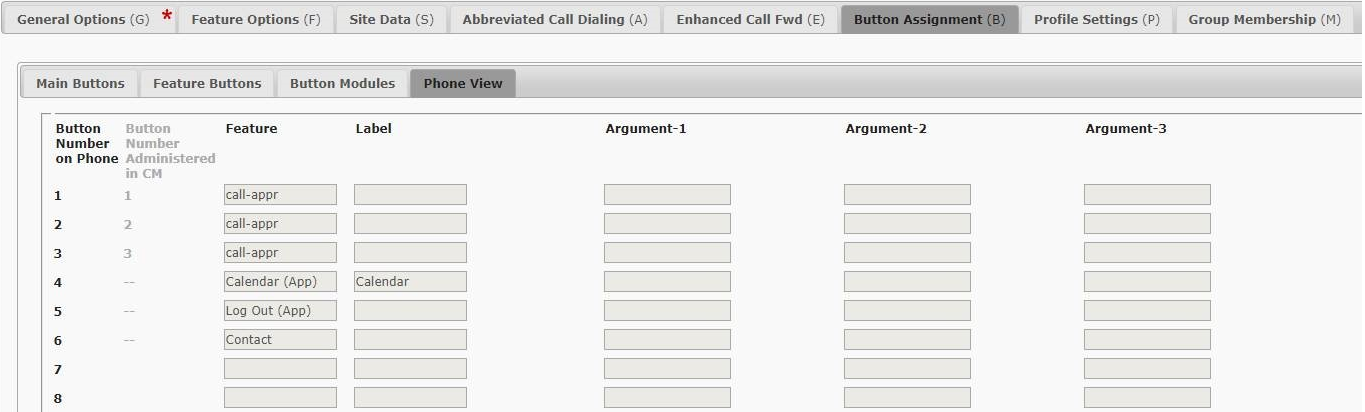
Contact name on the endpoint then text Contact is displayed on phone view instead of the actual contact name available in the customize key on the endpoint.
Example: If the key layout customization contains Calendar, its App on the endpoint, then on the Phone View tab, the value is displayed as Calendar (App).
App (Application) on the endpoint then App is appended to key layout customization while displaying on the phone view.
Endpoints that support key layout customization
If the endpoints support the key layout customization, then the phone key numbering is displayed on Phone View as customized by the user on the endpoint.
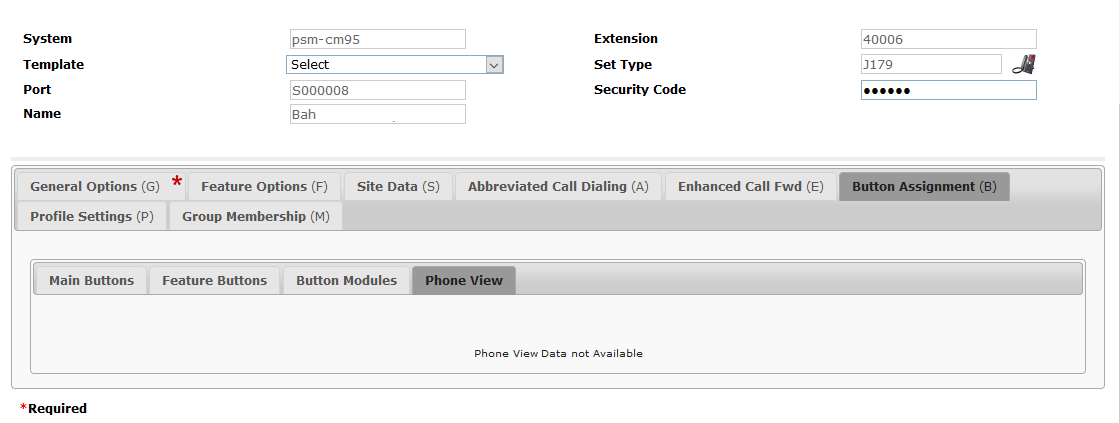
If the endpoint is not registered with Session Manager or data is not available with Session Manager, then the system displays the message: Phone View Data not Available
Endpoints that do not support key layout customization
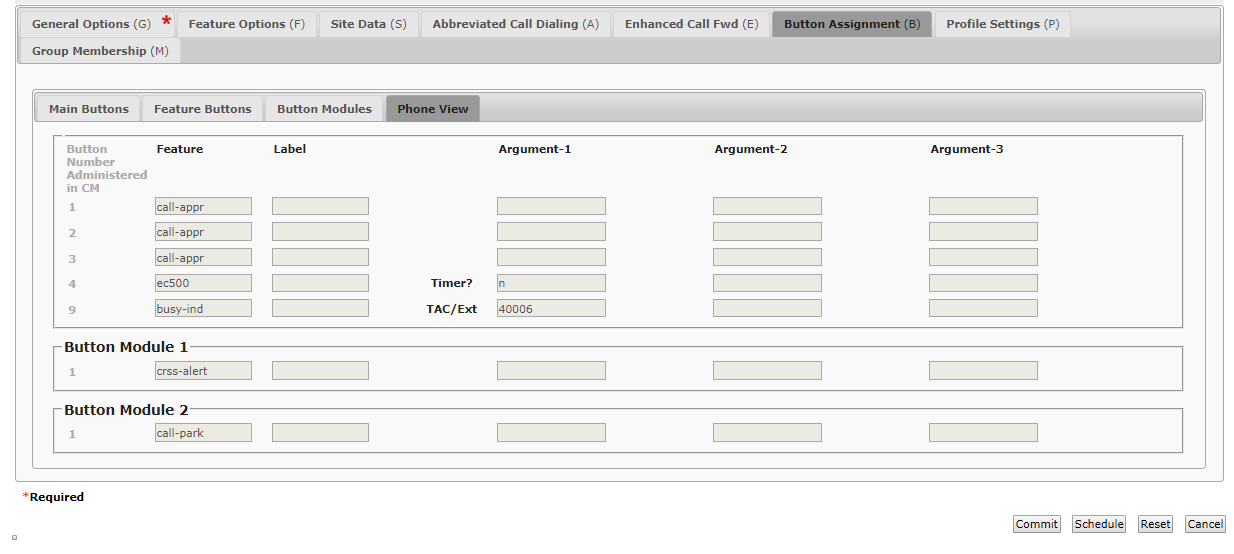
If the endpoints do not support the key layout customization, then the phone key numbering is displayed as administered on Communication Manager.
Examples of endpoints that do not support the key layout customization are: J129, J139, J159, J189, J189CC, 9641SIP, and 9641SIPCC.
Endpoint display mode
The phone can be set to use either the full screen width (single-column mode) or just a half-width (dual-column mode) for each programmable appearance and feature button.
Full screen width (single-column mode)
Each programmed button feature occupies the full width of the screen. The physical buttons on both sides of the display are used to control the button feature. However, the button status is only shown by the left-hand button. In this mode, appearance button labels also show a call status icon (for example: idle, alerting, connected).
Following is an example of endpoint display mode in full screen width.
The number in the following example corresponds to the Button Number on Phone column on the Phone View tab of the Add/Edit Endpoint page.
|
The number in the following table corresponds to the Button Number on Phone column on the Phone View tab of the Endpoint page.
Half-width (dual-column mode)
Each programmed button occupies one half of the screen line on which it is displayed, either the right-hand or left-hand side. The adjacent physical button on that side of the display is used to indicate the button's status and to control the button feature.
Following is an example of endpoint display mode in half-width screen.
The number in the following example corresponds to the Button Number on Phone column on the Phone View tab of the Add/Edit Endpoint page.
|
Profile settings field descriptions
Note:
Profile Settings is available for the 9608, 9611, 9621, 9641 SIP, 96x1SIPCC, J-Series, and CS 1000 endpoints.
Profile Settings work when the endpoint is associated with a user with a Session Manager profile.
Call Settings options
Name |
Description |
|---|---|
Phone Screen on Calling |
The option to specify whether the phone must automatically display the phone screen when the user goes off-hook or starts dialing. The options are:
|
Redial |
The field to select from the following redial options:
|
Dialing Option |
The field to specify the dialing options:
|
Headset Signaling |
The field that defines a headset signaling profile. The options are:
|
Audio Path |
The field to set the phone to go off-hook when you make an on-hook call. The options are:
Note:
If your system administrator has set up auto-answer, incoming calls are also answered on the default audio path you designate here. |
Screen & Sound Options
Name |
Description |
|---|---|
Button Clicks |
The field to activate or deactivate the standard button click sound. The options are:
|
Phone Screen |
The field to configure the phone screen width. The options are:
|
Background Logo |
The option to set a customized background logo. The Default value sets the built-in Avaya logo. |
Personalized Ringing |
The option to set a personalized ringtone for an incoming call. The options are:
Note:
The Personalized Ringing parameter is available on the Communication Manager Release 6.2 and 6.3 templates. However, the parameter does not apply to Release 6.2 and earlier Avaya Advanced SIP Telephony (AST) endpoints. Sometimes, the Avaya EST endpoints might overwrite the newly configured value of the parameter. For example, an endpoint where the related ringing parameter called Ringer Cadence is set to a value other than 1. In this case, the endpoint sets the Personalized Ringing parameter to the value of Ringer Cadence within a few minutes of the change. The reset can also happen during the next login of the endpoint. Session Manager was modified to reduce the instances of this occurrence. The default value of Ringer Cadence is set to 1 for any new Device Settings Groups added to Release 6.3.8. You can set the parameter on the page from the link. |
Call Pickup Indication |
The option to set ringtones to alert you about an incoming call. The options are:
|
Show Quick Touch Panel |
The options to display Quick Touch Panel on the phone. The options are:
Note:
Displaying the Quick Touch Panel field can limit your call appearances display to three lines at a time. This field is available for 9621 and 9641 SIP and SIPCC set types of endpoints. |
Language & Region
Name |
Description |
|---|---|
User Preferred Language |
The option to configure the user preferred language. The options are:
Note:
For these specific languages, only the following set types are supported:
From Release 8.1.3.7, System Manager supports the display of the User import or export operations will also support the While editing the endpoint, if you change the custom language to any other language, you cannot revert your changes to the custom language from the System Manager web console. When you add a new endpoint or user through the System Manager web console, System Manager will continue to support the current set of language options only. |
Time Format |
The option to configure the time format to be displayed on the phone screen. The options are:
|
Advance Options Presence integration
Name |
Description |
|---|---|
Away Timer |
The option to enable the automatic away timer for presence indication. The options are:
|
Away Timer Value |
The option to specify a value for the automatic Away Timer. For releases earlier than 8.1.3.5, the values are from 5 minutes through to 480 minutes. From Release 8.1.3.5 and later, the values are from 5 minutes through to 999 minutes. |
Support of common parameter across endpoint template
With Release 8.1.1, when you create a SIP endpoint, the system retains the common parameter information so that when you log in to SIP endpoints of the same type or of another type, all your SIP endpoints are able to retrieve and update any of the common parameters they utilize.
The following common parameters are available on the Profile Settings tab on the page of System Manager web console.
Audio Path
Away Timer
Away Timer Value
Background Logo
Button Clicks
Call Pickup Indication
Dialing Option
Headset Signaling
Personalized Ringing
Phone Screen
Phone Screen on Calling
Redial
Show Quick Touch Panel
Time Format
User Preferred Language
The following common parameters are available on the Button Assignment tab on the page of System Manager web console.
Favorite
Button Label
Note:
When you make changes to a common parameter from System Manager, the system gives precedence to that value as System Manager values are from a well-defined common parameter range. But when you make changes to a common parameter from an endpoint, the system gives precedence to that value only if the value is from the well-defined common parameter range. If the value is not from the well-defined common parameter range, then the value is only stored for that device family and the common value for that parameter is not changed.
Family-specific data is not changed.
If you have more than one SIP endpoint type, the following parameters are synchronized across all your SIP endpoints, which support these parameters according to the following table.
Common parameters |
1XC Model: n/a |
96x0 Model: 96xx |
96x1 Model: 96x1 |
J1x9 Model: J100 |
ADA Model: CS1k-xxx |
Equinox Model: AvayaClientServices |
Vantage Model: K1xx |
H Series Model: H1xx, H175 |
|---|---|---|---|---|---|---|---|---|
Audio Path |
Y |
Y |
Y |
Y |
Y |
|||
Away Timer |
Y |
Y |
||||||
Away Timer Value |
Y |
Y |
||||||
Background Logo |
Y |
Y |
Y |
|||||
Button Clicks |
Y |
Y |
Y |
Y |
Y |
|||
Call Pickup Indication |
Y |
Y |
Y |
Y |
||||
Dialing Option |
Y |
Y |
Y |
Y |
||||
Favorite |
Y |
Y |
Y |
Y |
||||
Headset Signaling |
Y |
Y |
Y |
Y |
||||
Button Label |
Y |
Y |
Y |
Y |
Y |
Y |
||
Personalized Ringing |
Y |
Y |
Y |
|||||
Phone Screen |
Y |
Y |
||||||
Phone Screen on Calling |
Y |
Y |
||||||
Redial |
Y |
Y |
Y |
|||||
Show Quick Touch Panel |
Y |
Y |
||||||
Time Format |
Y |
Y |
Y |
Y |
||||
User Preferred Language |
Y |
Y |
Y |
Y |
Y |
Group Membership
This section describes the different groups that an extension can be a member of. Select the station you want to group, and then choose the group from the drop-down box, before you click Commit.
Understanding groups
Your voice system uses groups for a number of different purposes. This topic describes the different groups that an extension can be a member of. However, your voice system might include other types of groups such as trunk groups. For more information on groups, see Administering Avaya Aura® Communication Manager, 03-300509.
Your voice system can have any of the following types of groups set up:
Type |
Description |
|---|---|
group page |
Group page is a feature that allows you to make an announcement to a pre-programmed group of phone users. The announcement is heard through the speakerphone built into some sets. Users will hear the announcement if their set is idle. Users cannot respond to the announcement. |
coverage answer group |
A coverage answer group lets up to 100 phones ring simultaneously when a call is redirected to the group. |
coverage path |
A coverage path is a prioritized sequence of extensions to which your voice system will route an unanswered call. For more information on coverage paths, see |
hunt group |
A hunt group is a group of extensions that receive calls according to the call distribution method you choose. When a call is made to a certain phone number, the system connects the call to an extension in the group. Use hunt groups when you want more than one person to be able to answer calls to the same number. For more information on hunt groups, see |
intercom group |
An intercom group is a group of extensions that can call each other using the intercom feature. With the intercom feature, you can allow one user to call another user in a predefined group just by pressing a couple of buttons. For more information on intercom groups, see |
pickup group |
A pickup group is a group of extensions in which one person can pick up calls of another person. For more information on pickup groups, see |
terminating extension group |
A Terminating Extension Group (TEG) allows an incoming call to ring as many as 4 phones at one time. Any user in the group can answer the call. For more information on terminating extension groups, see |