

AVAYA DOCUMENTATION CENTER
Find answers to your technical questions and learn how to use our products
Administering Avaya Aura® System Manager
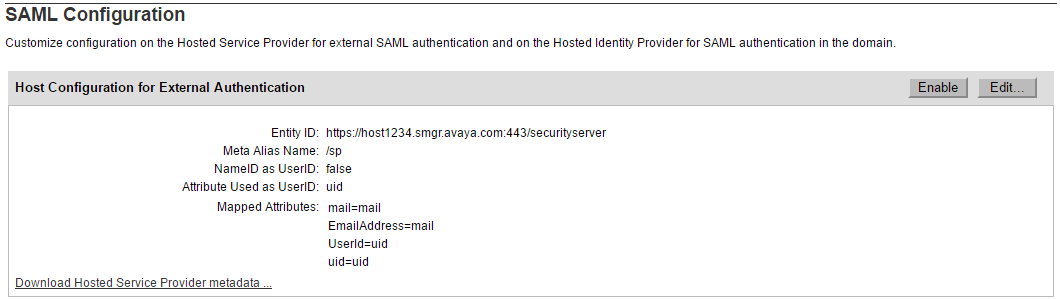
Configuring Hosted Service Provider on System Manager
About this task
The system automatically configures System Manager as Hosted Service Provider during the installation of System Manager and upgrade of System Manager from Release 6.2.
However, you can modify the configuration using the following procedure.
As an administrator, you can enable or disable SAML authentication in System Manager from the SAML Configuration page.
Procedure
- On the System Manager web console, click .
- In the navigation pane, click .
- Click Edit.
- On the SAML Hosted Service Provider page, perform the following:
- Perform one of the following:
Select the NameID as UserID check box.
In the Attribute Used as UserID field, enter the name of the attribute that you want to use as the login ID of the user in System Manager.
- Perform one of the following: