

AVAYA DOCUMENTATION CENTER
Find answers to your technical questions and learn how to use our products
Administering Avaya Aura® System Manager
Deleting a tenant
The Service Provider Administrator can delete the tenant and the tenant organization hierarchy.
Before you begin
Log on to System Manager Web Console as Service Provider Administrator.
Enable the Multi Tenancy feature.
Delete all users associated with the tenant.
Procedure
- Optional Perform the following steps to delete users associated with the tenant:
- On the User Management page, in the tenant organization, select a tenant.
The system displays the users associated with this tenant on the right pane. You can search for a tenant if you cannot view the tenant in the left pane.
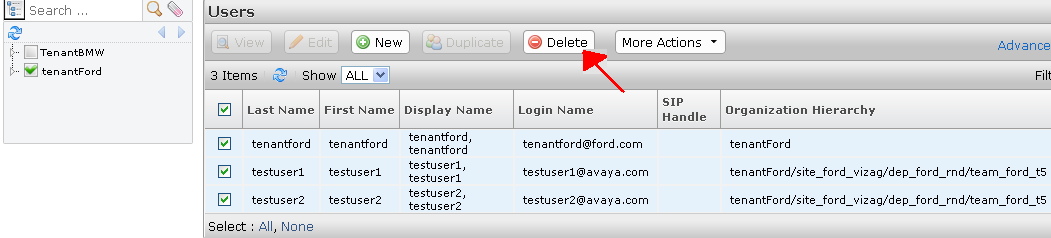
- On the User Management page, in the tenant organization, select a tenant.