

AVAYA DOCUMENTATION CENTER
Find answers to your technical questions and learn how to use our products
Administering Avaya Aura® System Manager
Changing the network settings for an Appliance Virtualization Platform host from Solution Deployment Manager
About this task
With Appliance Virtualization Platform, you can team NICs together to provide a backup connection when the server NIC or the Ethernet switch fails. You can also perform NIC teaming from the command line on Appliance Virtualization Platform.
Appliance Virtualization Platform supports Active-Standby and Active-Active modes of NIC teaming. For more information, see NIC teaming modes
.
Note:
If you add a host with service port IP address in Solution Deployment Manager and change the IP address of the host to the public IP address by using Host Network/ IP Settings, the system updates the public IP address in the database. Any further operations that you perform on the host fail because the public IP address cannot be reached with the service port. To avoid this error, edit the host with the service port IP address again.
If FQDN of the Appliance Virtualization Platform host is updated by using Host Network/IP setting for domain name, refresh the host so that the FQDN changes reflect in Solution Deployment Manager.
Use this procedure to change network settings, such as changing VLAN ID, NIC speed, and manage NIC team for an Appliance Virtualization Platform host.
Procedure
- Click .
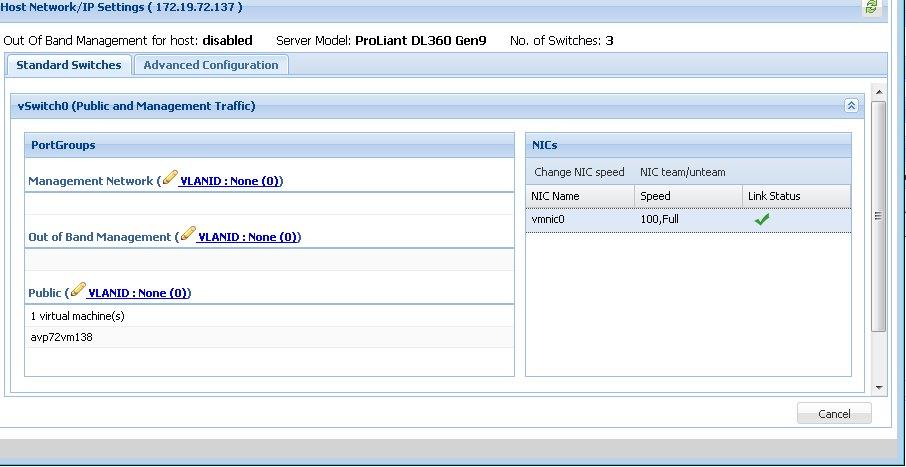
The Host Network/ IP Settings page displays the number of switches as 4.
You can configure port groups for the following switches:
vSwitch0, reserved for the Public and Management traffic.
vSwitch1, reserved for services port. You cannot change the values.
vSwitch2, reserved for Out of Band Management.
vSwitch3. No reservations.
vSwitch4. No reservations.
vSwitch5. No reservations.
- To change VLAN ID, click Standard Switches, and perform the following:
- Expand the vSwitch<n> section by clicking the downward arrow
 .
.
The section displays the vSwitch details.
- Click on the VLANID link or the edit icon (
 ).
).
The system displays the Port Group Properties page where you can edit the VLAN ID port group property.
The system displays the new VLAN ID.
- Expand the vSwitch<n> section by clicking the downward arrow
- To change the NIC speed, click Standard Switches, and perform the following:
The system displays the updated NIC speed in the Speed column.
If the NIC is connected, the system displays a check mark
 in Link Status.Note:
You can change the speed only for common servers. You cannot change the speed for the S8300E server.
- To get the latest data on the host network IP settings, click Refresh
 .
.
The system displays the current status of the vmnic.
Note:You cannot perform NIC teaming for the S8300E server.