

Log on to the web console of System Manager Release 6.1.
Prepare the Subscriber Manager user data for import to User Management.
Procedure
On the System Manager web console, click Users > Synchronize and Import.
In the navigation pane, click Sync Users.
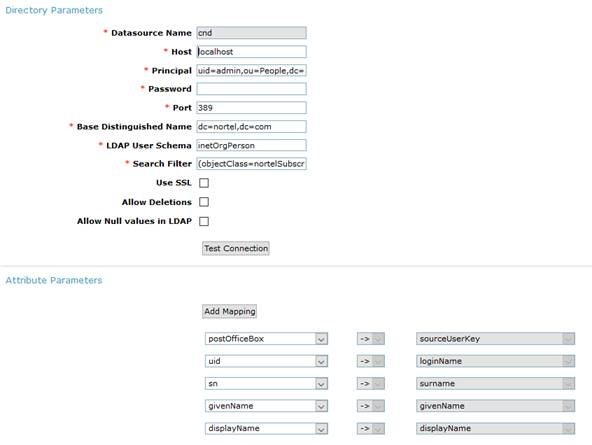
To create a new LDAP synchronization source, on the Synchronization Datasources tab, click New and enter the directory parameters as listed in the Subscriber Manager datasource parameters and attributes table.
Note:
If a subscriber does not have an account or the cpndName field is blank, you can map Last name, First Name to the displayName attribute of System Manager.
Click Test Connection to verify that the system can establish connection to the cnd database.
Perform the following steps to run the LDAP synchronization job:
On the Sync Users page, on the Active Synchronization Jobs tab, click Create New Job.
On the New User Synchronization Job page, in the Datasource Name field , select the name of the datasource and click Run Job.
The system starts the synchronization of the Subscriber Manager datastore with the User Management datastore.
On the Sync Users page, on the Synchronization Job History tab, click View Job Summary for the cnd job, and verify that the system successfully imported the users in the Added and Modified fields.
Note:
The Failed field might contain some errors due to the import of unsupported fields.
To verify that the users are available in User Management, do the following:
Navigate to Users > User Management > Manage Users.
On the User Management page, select a user and click View or Edit and verify that the System Manager Release 6.1 is configured correctly.
System Manager Release 6.1 now contains User Management configured with the Subscriber Manager data. The system is now ready for upgrading to System Manager Release 6.2 and later.