

Copying a timetable

Last Updated : May 13, 2015 |

About this task

This topic provides the procedure for copying an existing timetable to a new timetable. Although you can copy timetables from other users, you cannot copy over an existing timetable. When you copy a timetable, the scheduling information and tasks in the timetable are copied. The name of the timetable that will be copied should be known before starting this procedure.

Procedure

  1. Select Timetable on the Keep Screen-Labeled Key (SLK) menu.

    CMS displays the Timetable window.
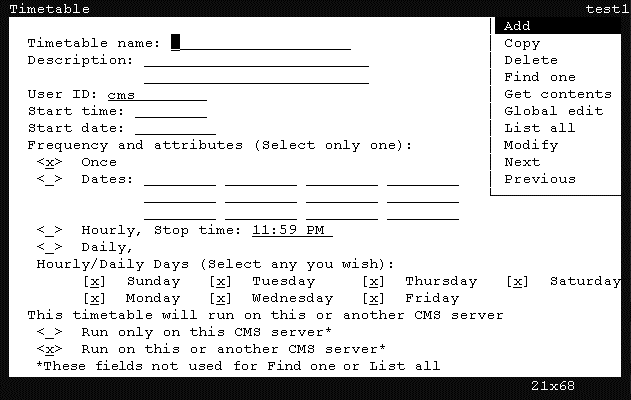


  2. In the Timetable name field, enter the name that will be used for the new timetable.

    The following list provides the types of characters that can be entered in this field:

    • Alphanumeric (A-z, 0-9)

    • Underscore (_)

    • Blank ( )

    • Comma (,)

    • Period (.)

    • Single Quotation Marks (')

    • Plus sign (+)

  3. In the User ID field, confirm that your user ID is present.
  4. Press the Enter key.

    CMS shifts focus to the action list.

  5. Use the arrow keys to highlight the Copy item in the action list and press the Enter key.

    CMS displays the Timetable: Copy window.



  6. In the Copy from field, enter the name of the timetable to copy.
  7. In theUser ID field, enter the user ID that is currently associated with the existing timetable.
  8. Press the Enter key.

    CMS shifts focus to the action list of the Timetable: Copy window.

  9. Press the Enter key again.

    CMS displays Successful in the status bar.

    If this new timetable is not scheduled to run, CMS displays a message notifying you that this copy needs to be rescheduled.

  10. Select the Exit SLK to close the Timetable window.