AVAYA DOCUMENTATION CENTER
Find answers to your technical questions and learn how to use our products
Administering Avaya Call Management System
Modifying timetable tasks
About this task
This topic provides the procedure for modifying tasks within a timetable. The Modify feature allows you to modify the action or data associated with any task within the selected timetable.
Before you begin
The following items should be read and understood before modifying timetable tasks:
Only the owner or an administrator can modify timetable tasks.
The Current and Main Menu Screen-Labeled Keys (SLKs) are blocked while modifying tasks.
If you press the Exit SLK without selecting a task action, a popup window is displayed stating that the task modification has been cancelled.
To exit the timetable without saving any changes, select the Stop item from the Keep SLK menu.
Procedure
- Select Timetable and press the Enter key.
CMS displays the Timetable window.
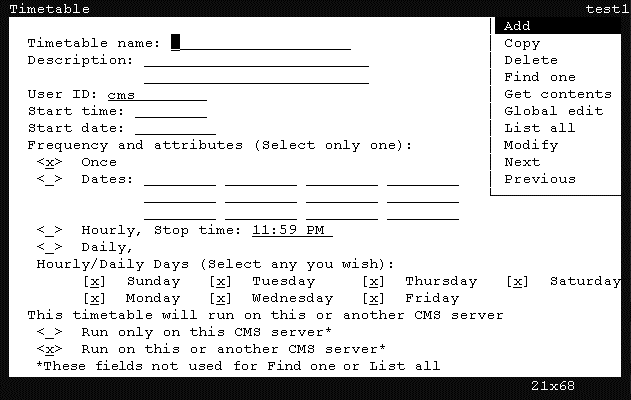
- Use the arrow keys to highlight the Get contents menu item and press the Enter key.
CMS displays the Timetable: Get Contents window.
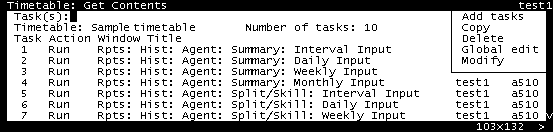
- Using the arrow keys, highlight the Modify menu item and press the Enter key.
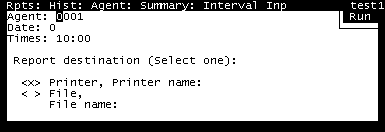
CMS displays a window for the specified task.
Example: