

Copying timetable tasks

Last Updated : Feb 15, 2016 |

About this task

This topic provides the procedure for duplicating tasks within a timetable.

Before you begin

The following items should be read and understood before copying timetable tasks:

  • Only the owner of the timetable or an administrator can copy timetable tasks.

  • You cannot copy a task more than once using the Copy command in the Timetable: Get Contents window. You must reuse the Copy command to make additional copies of a task.

  • You cannot copy more than 100 tasks into a timetable. If you exceed the limit, none of the tasks are copied. The status line will display a Failed message when this occurs.

  • Copies of tasks can be placed after a specified task in the timetable, or each copy can be placed directly after the task from which it was copied. The default is to place the copies after the last task in the timetable.

Procedure

  1. From the CMS main menu, press F4 (Keep).
  2. Select Timetable and press the Enter key.

    CMS displays the Timetable window.
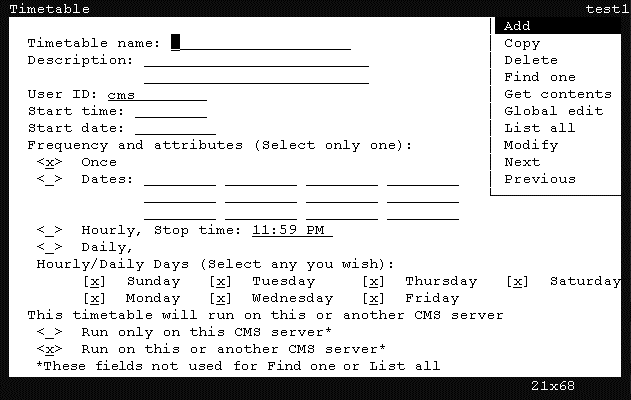


  3. Press Ctrl+Z.

    The fields in the window are cleared of all default information.

  4. In the Timetable name field, enter the name of the timetable containing the task to copy.
  5. In the User ID field, enter the user ID that created the timetable.

    If you are not the owner or an administrator, you will not be able to copy tasks in the timetable.

  6. Press the Enter key.

    CMS shifts focus to the action list.

  7. Use the arrow keys to highlight the Get contents menu item and press the Enter key.

    CMS displays the Timetable: Get Contents window.
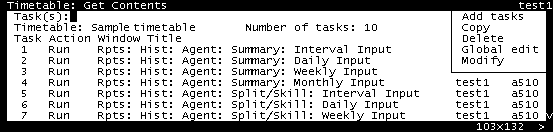


  8. In the Task(s) field, enter the task number to copy and press the Enter key.

    CMS shifts focus to the action list of the Timetable: Get Contents window.

  9. Using the arrow keys, highlight the Copy menu item, and press the Enter key.

    CMS displays the Timetable: Get Contents window.
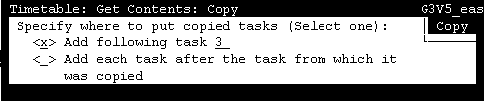


  10. Choose one of the following options by placing an x next to it:
    • Add following task - The copied task will be placed immediately after the task specified in this field.

    • Add each task after the task from which it was copied - The copied task is placed immediately after itself.

    The default action is to place the copied task at the end of the list.

  11. Press the Enter key.

    CMS shifts focus to the action list.

  12. Press the Enter key again.

    CMS displays Working in the status line. When the operation completes, the status line displays Successful. CMS closes the Copy window and displays the Timetable: Get Contents window.

    If the operation fails, a message window appears stating the reason for the failure.

  13. To close the Timetable: Get Contents window, select the Exit SLK.