

Editing timetables globally

Last Updated : Feb 15, 2016 |

About this task

Globally editing timetables changes the server compatibility for all timetables associated with a user ID.

Server compatibility of timetables can be one of the two following states:

  • Add following task - The timetable will run only on this CMS server. If this timetable is backed up and migrated to another CMS server, it will not run.

  • Add each task after the task from which it was copied - The timetable is capable of running on this or any other CMS server. If this timetable is backed up and migrated to another CMS server, it will function normally.

Before you begin

The following items should be read and understood before making global edits to timetable tasks:

  • Only the owner of the timetable or an administrator can globally edit a timetable.

  • If an error is made during a global edit, CMS displays an error message describing the nature of the problem. All errors must be corrected before CMS allows you to complete the modifications.

Procedure

  1. From the CMS main menu, press F4 (Keep).
  2. Select Timetable and press the Enter key.

    CMS displays the Timetable window.
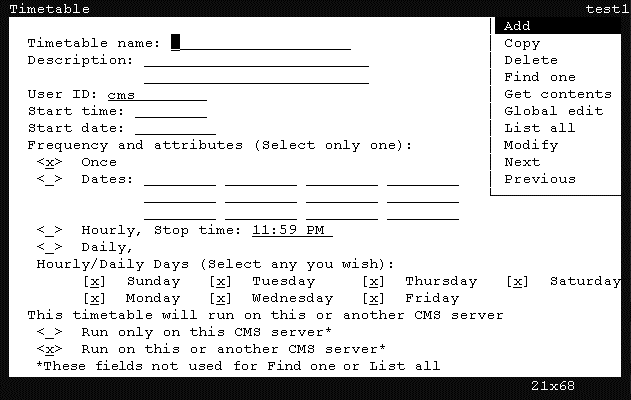


  3. Press Ctrl+Z.

    The fields in the window are cleared of all default information.

  4. In the Timetable name field, enter the name of the timetable containing the tasks to modify globally.
  5. Press the Enter key.

    CMS shifts focus to the action list.

  6. Using the arrow keys, highlight Find one and press the Enter key.

    CMS locates the timetable and populates the remaining fields with the information from the timetable.

  7. Press the Enter key.

    CMS shifts focus to the action list.

  8. Using the arrow keys, highlight Global edit and press the Enter key.

    CMS displays the Timetable: Global Edit window.
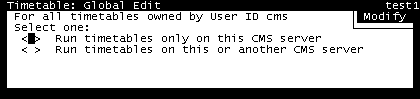


  9. Select one of the following options by placing an x in the associated field:
    • Add following task - All timetables owned by the specified user ID will be modified so that they can only run on this CMS server. Timetables migrated to another server will not function.

    • Add each task after the task from which it was copied - All timetables owned by the specified user ID will be modified so that they can run on the current CMS server or, if migrated, a different CMS server.

  10. Press the Enter key.

    CMS shifts focus to the action list and highlights the Modify action.

  11. Press the Enter key again.

    CMS will display a message in the status line of this window indicating how many timetables were updated.

  12. Use the Exit SLK to close this window and return to the Timetable window.

    The timetable displayed in the Timetable window does not update automatically. Use the Find one action to re-query for this table in order to show the current configuration.