

Deleting tasks from a timetable

Last Updated : Feb 15, 2016 |

Before you begin

The following items should be read and understood before deleting tasks from a timetable:

  • Only the owner of the timetable or an administrator can delete tasks from a timetable.

  • To exit the timetable without saving any changes, select the Stop item from the Keep SLK menu.

Procedure

  1. From the CMS main menu, press F4 (Keep).
  2. Select Timetable and press the Enter key.

    CMS displays the Timetable window.
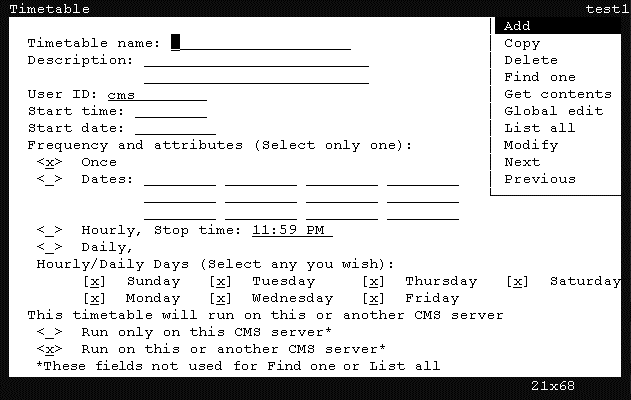


  3. Press Ctrl+Z.

    The fields in the window are cleared of all default information.

  4. In the Timetable name field, enter the name of the timetable containing the tasks to modify globally.
  5. Press the Enter key.

    CMS shifts focus to the action list.

  6. Using the arrow keys, highlight Find one and press the Enter key.

    CMS locates the timetable and populates the remaining fields with the information from the timetable.

  7. Press the Enter key.

    CMS shifts focus to the action list.

  8. Using the arrow keys, highlight Get contents and press the Enter key.

    CMS displays the Timetable: Get Contents window.
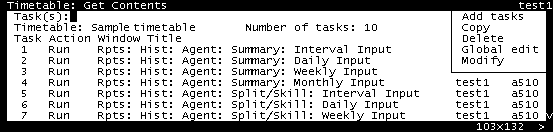


  9. In the Task(s) field, enter the number of the task to delete.
  10. Press the Enter key.

    CMS shifts focus to the action list.

  11. Using the arrow keys, highlight Delete and press the Enter key.

    CMS displays a confirmation window.

  12. Press the Y key and then the Enter key to save the changes.

    CMS deletes the task from the timetable, the tasks are renumbered, the timetable is saved, and the status line displays a Successful message.

  13. Select the Exit SLK to close the Timetable: Get Contents window.