AVAYA DOCUMENTATION CENTER
Find answers to your technical questions and learn how to use our products
Configuring Workflows for Avaya Experience Platform™ Public Cloud
Variables overview
A variable is a symbolic representation of data that you сan access without typing it. Introducing variables is useful when you use the same values in multiple places. For example, if you use the same URL in multiple places, you can add it as a global variable. If the URL changes, you only need to change a value in the variable. Variables are available in Orchestration and Automation. Orchestration changes this value in all workflows where this global variable is used.
Variables in Orchestration are key-value pairs. Each variable name represents its key. Thus, when you reference the variable name, you can access its value.
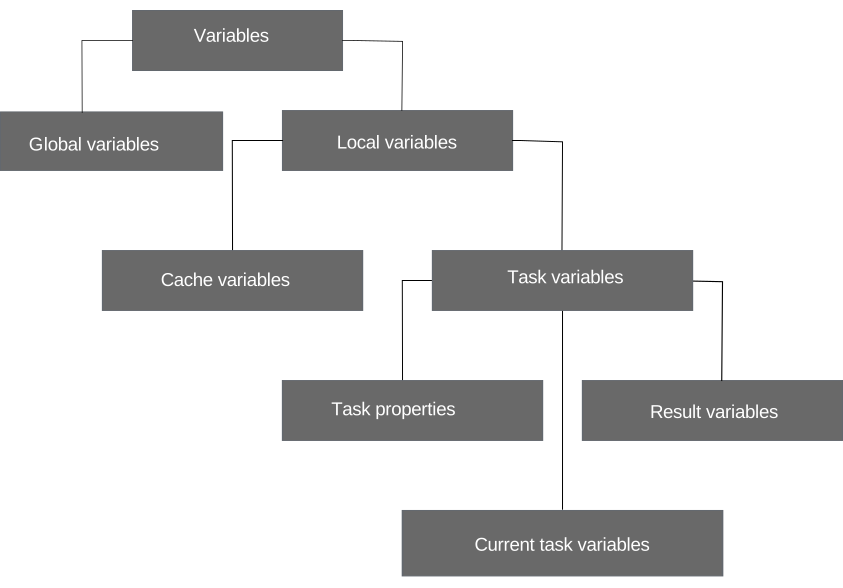
Orchestration uses the following types of variables:
Global
Local
As a Business Analyst user, you can access variables by typing a static variable value into the corresponding field. This value stays constant during run-time.
As an Administrator user, you can type static variable values in the corresponding field. You can also select a variable that gets values in real-time and is associated with the engagement. To add a variable, click  and select a variable from the available options.
Global variables
Global variables are entities with the assigned name and value that are available for use in all workflows. You can create, view, edit, and delete variables in Orchestration Manager. If you edit a global variable, the change applies to all workflows where the variable is in use. To avoid errors, do not change or delete the global variable during the workflow execution.
To access a variable, click and select Global Variables from the list of available options. For example, you can create the following variables:
Variable Name |
Value |
|---|---|
host |
avaya.com |
protocol |
https |
port |
443 |
You can use them as follows in the REST URI field of the REST API task: GlobalVariables.protocol://GlobalVariables.host:GlobalVariables.port/updaterecords
Local variables
Local variables are available only for the specific workflow and represented in Orchestration with cache and task variables.
As an interaction traverses a workflow, it accumulates data. For example, the Start Task is associated with the ENGAGEMENT_PREROUTED event. The Start Task contains a rich dataset related to the interaction and the data collected during pre-routing. To make this information available to downstream tasks, this data is available in the workflow cache.
The workflow cache is the term used to describe the collection of data available within the workflow. The cache is available to the Administrator user to facilitate advanced customization and configuration. To access cache, you can select Cache Variables in text boxes where you enter data. You can select the required data from the list of items that are currently available in the cache. To add or overwrite a cache variable, use the Result Mapping tab of the REST API or Azure Functions task. An example of a cache variable is an attribute list that Orchestration uses for routing.
You can also work with data on the task level. Orchestration creates task results when receiving result name and data. You can use task results in the task where you received the result and in all subsequent tasks of the workflow which are directly or indirectly connected with that task. Orchestration differentiates between:
Result variables: Results of the previous tasks.
Current task variables: Results of the current task.
To set up a task, configure task properties, the range of which differs depending on the task. With the REST API and Azure Functions tasks, you can add all types of variables as values to task properties. To add or overwrite a value in the task property, use the Destination field on the Result Mapping tab of the REST API task. You can see task properties in workflow instances.
Note:
If you remove or edit a variable from a self-service flow, you must also remove or edit the variable on the Orchestration workflow. Modify the downstream tasks such as Start Automation that uses the removed or edited variable, otherwise the workflow ends with an error during the call.